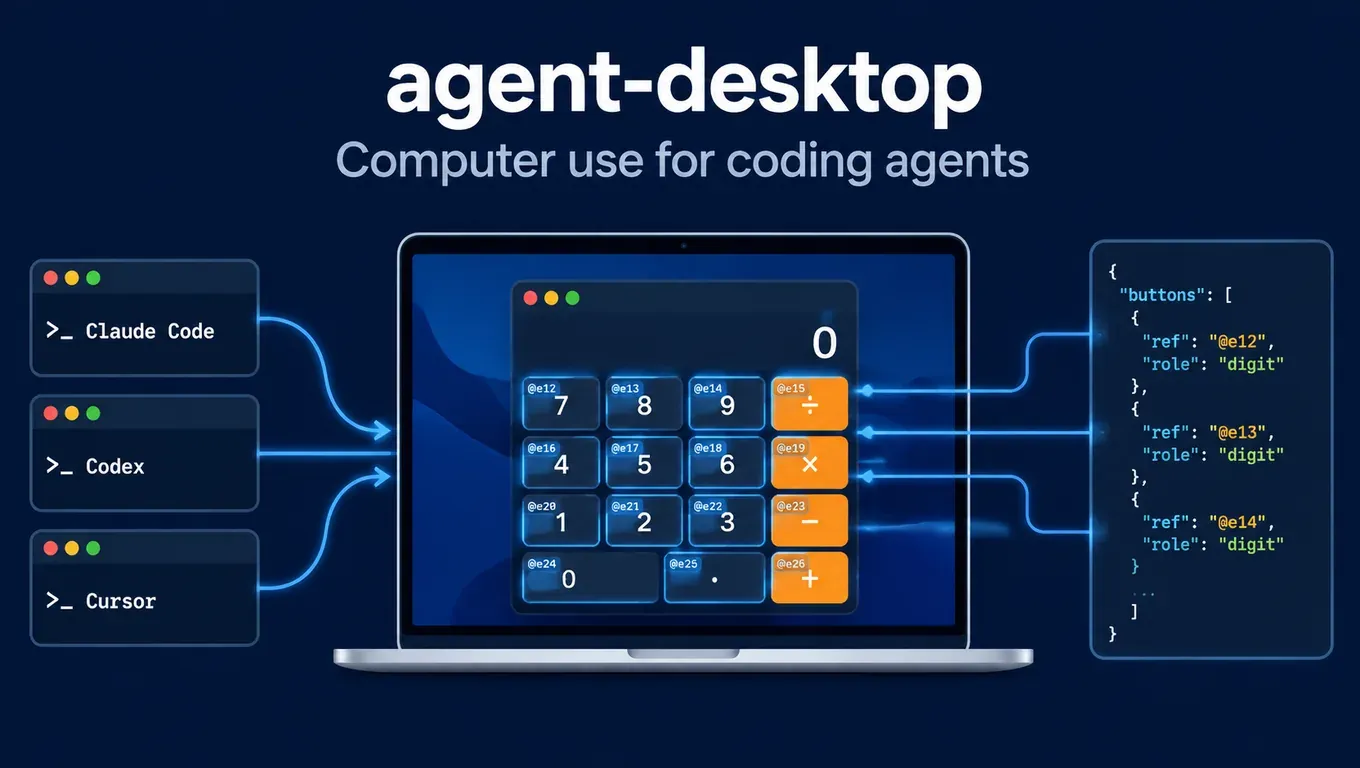
The short version: agent-desktop is an open-source CLI from Vercel Labs (Apache-2.0) that lets coding agents "see" and operate native desktop apps. It reads the operating system's accessibility tree and gives every button and text field a ref. The agent acts on a ref and reads the UI again to confirm the result, instead of guessing pixel coordinates from a screenshot.
- It is not an agent and has no model inside. Each command prints one JSON envelope and exits. The observe, act and verify loop runs in your Claude Code, Codex or Cursor, so all three can use it.
- Install is one line:
npm install -g agent-desktop, thennpx skills addputs the official skill into your project, where Claude Code, Codex and Cursor each pick it up. - We ran it end to end: with our site's API key, Claude Code took about 28.6 seconds and Codex about 35 seconds to click through a desktop calculator and read the answer back. Both answers were correct.
- Two traps to know first: some apps (such as the GTK4 GNOME Calculator we tried) do not expose control positions, so ref clicks fail with
bounds unavailable; and under Codex's default sandbox on Linux, agent-desktop cannot reach the desktop D-Bus and fails withOperation not permitted. Fixes are in the errors section below.
Create an API Key and connect agent-desktop to Claude Code, Codex or Cursor →
What agent-desktop is and why it is trending
On the morning of October 31 (Beijing time), Chris Tate of Vercel announced agent-desktop on X as "agent-browser, for your whole computer": computer use for any coding agent, on macOS, Windows and Linux, running in the background without taking your mouse, with several agents able to work in parallel. By the afternoon of November 1 the post had about 640,000 views, more than 7,700 likes and more than 8,700 bookmarks. The author, Lahfir, listed the main points in his launch post: end-to-end testing of desktop apps with agents, reading apps through the accessibility tree, drilling into part of a window to save tokens, and many agents on one app at once.
The GitHub repository has about 5,000 stars, shipped v1.0.2 on October 30, and launched its official docs at the same time. Key facts:
| Item | Details |
|---|---|
| Form | A Rust CLI plus a C library; 60 command names, each printing one JSON envelope |
| How it works | AX API on macOS, UI Automation on Windows, AT-SPI on Linux; it reads the control tree the app exposes |
| Requirements | macOS 13+; Windows 10 1809+ or Server 2019+; Ubuntu 24.04+ (glibc 2.35 floor); x64 and ARM64 |
| What it does not do | No built-in model, no web automation (use agent-browser for pages), and it cannot see UI that publishes no accessibility tree |
From the community: according to @decildmc, he moved his Mac computer-use setup from cua-driver to agent-desktop because it sends the model only what can be clicked, and clicks trigger the button directly without moving the mouse. According to @o_kwasniewski, he built a weekend demo of e2e tests for native desktop apps on top of it. According to an X trending summary, one demo cut token use over 52 steps from about 198k to about 31k by using a skeleton snapshot and drilling into one region.
Compared with screenshot-based computer use, its strengths are stable refs and safe retries (each error says whether the input was delivered). The limit is that it only works with apps that expose accessibility information.
Step 1: Install agent-desktop and check permissions
npm install -g agent-desktop
agent-desktop version
agent-desktop status
If status returns a non-empty supported_surfaces and accessibility is granted, you are ready. This is the healthy output we got on Linux:
{"ok":true,"command":"status","data":{"permissions":{"accessibility":{"state":"granted"}},
 "platform":"linux","supported_surfaces":["window","sheet","alert","menu"],"version":"1.0.2"}}
Permissions per OS:
- macOS: grant Accessibility to the app that launches agent-desktop (Terminal, iTerm2, VS Code or your agent's host app).
agent-desktop permissions --guideopens the right System Settings page. Screenshots also need Screen Recording. See the macOS docs. - Windows: no grant is needed, but apps running as administrator can be read and not driven unless you run from an equally elevated terminal. The binary is unsigned, so SmartScreen or antivirus may block it. See the Windows docs.
- Linux: run it inside the user's graphical session with
at-spi2-coreinstalled. See the Linux docs.
Step 2: Connect agent-desktop to Claude Code, Codex and Cursor
agent-desktop carries its own version-matched guides (agent-desktop skills get desktop and skills get platform). Connecting it just means making the agent read these two before first use. Pick one of two ways.
Option A: install the official skill with skills (recommended)
# in your project root
npx skills add https://github.com/vercel-labs/agent-desktop --skill agent-desktop

# non-interactive, pick the clients explicitly
npx skills add https://github.com/vercel-labs/agent-desktop --skill agent-desktop \
  -a claude-code -a codex -a cursor -y
When we ran it in a project, the installer printed:
✓ ./.agents/skills/agent-desktop
  universal: Codex, Cursor
  symlinked: Claude Code
So the skill lands in the project's .agents/skills/agent-desktop. Codex and Cursor read that folder directly, and Claude Code reads the same files through a .claude/skills/agent-desktop symlink. Add -g to install at user level for every project. For skills basics, see How to use skills in AI agents.
The installer also shows security scan results (this time Gen said Safe, Socket reported 0 alerts and Snyk said Med Risk) and reminds you that skills run with the agent's full permissions. Read SKILL.md before you install.
Option B: add two lines to AGENTS.md / CLAUDE.md
If you would rather not install a skill, put the official snippet in your project's AGENTS.md (read by Codex and Cursor), and in CLAUDE.md for Claude Code:
Use `agent-desktop` to see and operate desktop apps. Before the first use, run
`agent-desktop skills get desktop` and `agent-desktop skills get platform`, and follow them.
To share one instructions file between Claude Code and Codex, see Sharing one AGENTS.md between Claude Code and Codex.
Step 3: Point your client at our API key
- Sign up at aicodewith.ai, open Key management, create a key and copy the full string.
- Configure the client you use.
Claude Code:
export ANTHROPIC_BASE_URL="https://api.aicodewith.ai"
export ANTHROPIC_AUTH_TOKEN="YOUR_API_KEY"
To make it permanent or set it up on Windows, see How to connect Claude Code to a third-party API. The same guide covers choosing models in Cursor.
Codex: put this in the global ~/.codex/config.toml:
# ~/.codex/config.toml
model_provider = "aicodewith"
model = "gpt-6.1-sol"

[model_providers.aicodewith]
name = "aicodewith"
base_url = "https://api.aicodewith.ai/chatgpt/v1"
wire_api = "responses"
experimental_bearer_token = "YOUR_API_KEY"
More fields are covered in Codex config.toml explained.
Cursor: once the model is set up as in the guide above, Cursor's agent reads .agents/skills and AGENTS.md in the project, the same way Codex does.
Step 4: Let the agent run observe, act, verify
The loop has three steps: snapshot returns the control tree with refs, you act on a ref with click, type and so on, then snapshot or get again to confirm. A ref carries the id of the snapshot that produced it (such as @s2jrj9msmdpdlw:e46), so take a fresh snapshot when the UI changes.
agent-desktop list-apps                                # app names agent-desktop can see
agent-desktop snapshot --app galculator -i --compact   # interactive elements, each with a ref
agent-desktop click @s2jrj9msmdpdlw:e46                # act on a ref from that snapshot
agent-desktop snapshot --app galculator -i --compact   # observe again to verify

# dense apps (Electron, IDEs): map a skeleton first, then drill into one region
agent-desktop snapshot --app "Visual Studio Code" --skeleton -i --compact
agent-desktop snapshot --root @sXXXX:e1 -i --compact
For dense apps (Electron clients, IDEs), the docs recommend a shallow --skeleton first and then --root to expand only the region you need, so token use follows the region you work on. See Skeleton and drill-down.
You normally do not type these commands yourself. Just tell the agent: "use agent-desktop to open app X, do Y, and confirm the result."
Test run: Claude Code and Codex drive a calculator with our API key
Test date: November 1, 2026. Environment: Linux (Debian 13, X11 with the xfwm4 window manager), agent-desktop 1.0.2, target app galculator (GTK3). The task: click buttons only, no typed formula, then read the result back from the app. Both clients had only the Option B CLAUDE.md / AGENTS.md lines.
Claude Code 2.1.316
claude -p "Use agent-desktop to operate the galculator app that is already open: calculate 12 × 34 by clicking its buttons, then read the result back (Edit > Copy Display Value, then agent-desktop clipboard-get). Reply with RESULT=<number>." \
  --model claude-sonnet-4-6 \
  --allowedTools "Bash(agent-desktop:*)"
| Item | Result |
|---|---|
| Task | 12 × 34 |
| Reply | RESULT=408 (correct) |
| Time | about 28.6 seconds, 11 turns |
| agent-desktop commands | 15, one of which failed and was corrected by the agent |
Commands Claude Code actually ran (excerpt):
agent-desktop skills get desktop
agent-desktop skills get platform
agent-desktop snapshot --app "galculator" -i --compact
agent-desktop click @s2jrj9msmdpdlw:e40        # AC
agent-desktop click @s2jrj9msmdpdlw:e46        # 1  (then 2, *, 3, 4, =)
agent-desktop click @s2jrj9msmdpdlw:e6         # "Copy Display Value" -> ACTION_FAILED, menu not open
agent-desktop click @s2jrj9msmdpdlw:e4         # open the Edit menu
agent-desktop snapshot --surface menu --app "galculator" -i --compact
agent-desktop click @s1muxufwf6hxgz:e3         # Copy Display Value
agent-desktop clipboard-get                    # -> 408
It read the two guides as CLAUDE.md asked, took a snapshot and clicked the buttons by ref. Its first click on "Copy Display Value" failed because the menu was not open yet, with this error. It then opened the Edit menu, took a new snapshot with --surface menu, clicked again, and read 408 with clipboard-get:
{"ok":false,"command":"click","error":{"code":"ACTION_FAILED",
 "message":"Target is not actionable: visible (live offscreen state is true)"}}
A single click took about 0.07 seconds on this machine; most of the time went into model thinking.
Codex 0.164.0
codex exec "Use agent-desktop to operate the galculator app that is already open: calculate 56 × 78 by clicking its buttons, then read the result back from the app. Reply with RESULT=<number>."
| Item | Result |
|---|---|
| Task | 56 × 78 |
| Reply | RESULT=4368 (correct) |
| Time | about 35 seconds |
| agent-desktop commands | 24, two of which failed |
Both failures were agent-desktop: command not found at the start. For the test we installed agent-desktop inside the project folder rather than globally, and Codex runs commands in a login shell whose PATH did not include it. Codex found the executable path on its own and finished the task. For real use, install globally with npm install -g.
A run that did not work: GTK4 GNOME Calculator
We first tried GNOME Calculator (GTK4). agent-desktop listed every button, but every click failed with bounds unavailable: in our X11 setup this app exposes no control positions, so agent-desktop's visibility preflight failed and it refused to click (delivery: not_delivered, so nothing was clicked by mistake). Claude Code then started guessing screen coordinates with mouse-click --headed, was still not done after 10 minutes, and we stopped it. Keyboard input with agent-desktop press did work in that app.
Lesson: when an agent keeps hitting bounds unavailable, do not let it guess coordinates. Switch to keyboard input or a different app. You can say so in the prompt: "if clicks fail, send keys with press."
Create an API Key and try it on your own machine →
Common errors and fixes
agent-desktop errors are JSON. Decide by error.code and disposition.retry: safe means the input was not delivered and a retry is fine; with unsafe or unknown, observe first so you do not submit twice. The full list is in the official errors page. These are the ones we hit.
status shows accessibility denied and an empty supported_surfaces (Linux)
{"ok":true,"command":"status","data":{"permissions":{"accessibility":{"state":"denied",
 "suggestion":"AT-SPI is not installed or not visible to this process. Install the at-spi2-core package, then retry."}},
 "supported_surfaces":[]}}
AT-SPI is missing or not visible to the process. Install at-spi2-core and make sure you run inside the graphical session (an SSH shell without session variables sees no apps). Apps inside Flatpak or snap need the matching interface.
list-apps says the native window type could not be proven
{"ok":false,"command":"list-apps","error":{"code":"ACTION_NOT_SUPPORTED",
 "message":"The native window type of accessibility frame owned by pid 3857714 could not be proven"}}
We hit this on a virtual display with no window manager. As soon as we started one (xfwm4), list-apps worked. A normal desktop should not run into it.
click times out with bounds unavailable
{"ok":false,"command":"click","error":{"code":"TIMEOUT",
 "message":"Target did not become actionable within the wait budget",
 "details":{"kind":"actionability_timeout","last_report":{"report":{"checks":[
   {"check":"visible","reason":"bounds unavailable","status":"unknown"}]}}},
 "disposition":{"delivery":"not_delivered","retry":"safe"}}}
The app does not expose control positions, and --headed does not help. Use press for keyboard input or a different app with fuller accessibility support. See the GTK4 run above.
click fails with ACTION_FAILED: visible (live offscreen state is true)
The target is not visible right now, for example a menu item whose menu is closed. Open the menu first, then take a new ref with snapshot --surface menu.
INTERNAL with Operation not permitted inside Codex
{"ok":false,"command":"list-apps","error":{"code":"INTERNAL",
 "message":"The accessibility bus returned an unexpected error",
 "platform_detail":"Failed to connect to address `unix:path=/tmp/dbus-...`: Operation not permitted (os error 1)"}}
We saw this on Linux with codex exec -s workspace-write: Codex's sandbox blocks the connection to the desktop D-Bus, so agent-desktop cannot reach the accessibility bus. Let agent-desktop commands run outside the sandbox: approve the command when Codex asks in interactive mode, or use --dangerously-bypass-approvals-and-sandbox only on a dedicated test machine or VM. Our test run used the latter on a separate test desktop.
command not found
/bin/bash: line 1: agent-desktop: command not found
agent-desktop is not on the PATH the agent uses. Install it globally with npm install -g agent-desktop, or write the full path in AGENTS.md.
Refs do nothing in Windows PowerShell
PowerShell treats a bare @xxx as the splatting operator, so quote refs:
agent-desktop click '@s8f3k2p9:e8'
Safety notes
- Snapshots contain what is on your screen. According to @mikawuf, snapshots include what is displayed, so keep them out of public logs. Close password managers and chat apps before letting an agent work.
- Grant only what is needed. In Claude Code,
--allowedTools "Bash(agent-desktop:*)"allows only agent-desktop; turn off Codex's sandbox only in an isolated environment. - Skills and AGENTS.md are instructions your agent will follow, so use trusted sources. See AGENTS.md hijack risks.
- To run it in the cloud: according to the author Lahfir, agent-desktop can also run inside a Linux desktop started in a Vercel Sandbox.
FAQ
How is agent-desktop different from agent-browser
agent-browser drives web pages; agent-desktop drives native desktop apps. For the web contents of a Chromium or Electron app, agent-desktop can open a DevTools port with launch "App" --cdp and hand it to agent-browser.
Do I need a special computer-use model
No. agent-desktop only outputs text (JSON), so any coding agent that can run shell commands can use it. Our runs used Claude Sonnet 4.6 and GPT-6.1 Sol.
Can I use it for e2e tests of my own desktop app
Yes, that is one of the main uses the authors list. For checking whether a code change works in the real app, see also Driving a real app with a verification skill.
Related reading
- How to connect Claude Code to a third-party API
- Codex config.toml explained
- How to use skills in AI agents
- Sharing one AGENTS.md between Claude Code and Codex
- Driving a real app with a verification skill
Create an API Key and start with Claude Code, Codex or Cursor →