
Quick reference: what you see, why it happens, and how to fix it
| Symptom or error text | Most likely cause | What to do first |
|---|---|---|
| Incorrect API key provided | The key was copied incompletely, deleted, or belongs to another project | Create a new key in the dashboard, copy the whole thing, and set it again |
| Invalid Authentication | The key and the request belong to different organizations | Confirm the key was created under the organization and project you want to use |
| You must be a member of an organization | The account doesn't belong to any organization | Ask an organization admin to invite you |
| IP not authorized | Your egress IP isn't on the allowlist | Switch to an allowed network, or ask an admin to update the allowlist |
| Login shows success, then the first request returns 401 | Codex doesn't check whether the key is valid at login | Verify with a short codex exec task (see below) |
| Failed to refresh token: 401 | The ChatGPT login session expired or was revoked | codex logout and then log in again with codex login |
| A plugin or connector suddenly returns 401 | The plugin's own authorization expired | Reconnect and reauthorize in the plugin settings |
| A third-party provider returns 401 | experimental_bearer_token is wrong, has extra spaces, or is set in project-level config | Check item by item against the "If you use AI Code With" section |
The error text in the first four rows comes from the OpenAI error code docs, and it only applies to 401s returned by OpenAI's official API. Third-party providers word their errors differently. For example, AI Code With returns {"error":"请在请求中提供有效的 API Key。"}.
What 401 means
401 Unauthorized means authentication failed, so the server can't tell who you are. It's not the same as 429, which means "we know who you are, but you're sending too many requests." See "How to Fix Codex 429 Too Many Requests." For 503 capacity errors, see "Codex Error: Selected model is at capacity."
When you troubleshoot a 401, save the full error text first, then confirm which authentication path the request took. Change one thing at a time. Don't swap the key, URL, and model all at once, or you won't know which step fixed it.
Step 1: Confirm which authentication path you're on
Codex has three authentication paths:
- ChatGPT login: sign in with a ChatGPT account and use your subscription quota;
- OpenAI API Key: log in with
codex login --with-api-key, and the key is stored in~/.codex/auth.jsonor the system credential store; - Third-party provider: in
~/.codex/config.tomlyou've configuredmodel_provider, such as AI Code With.
For the first two, you can check the current status with this command:
codex login status
A note on the third path: when the key is in config.toml underexperimental_bearer_token,codex login statusshowsNot logged in. That's normal and doesn't mean the config is broken. In our test it showed not logged in, and requests still worked. To tell whether this path works, use thecodex execpreflight in the next section.
Login shows success, so why does the first request return 401
Many people run into this: codex login says login succeeded, codex login status also shows logged in, but the first real task returns 401. The reason is that login only saves the key locally and doesn't check with the server whether the key is valid.
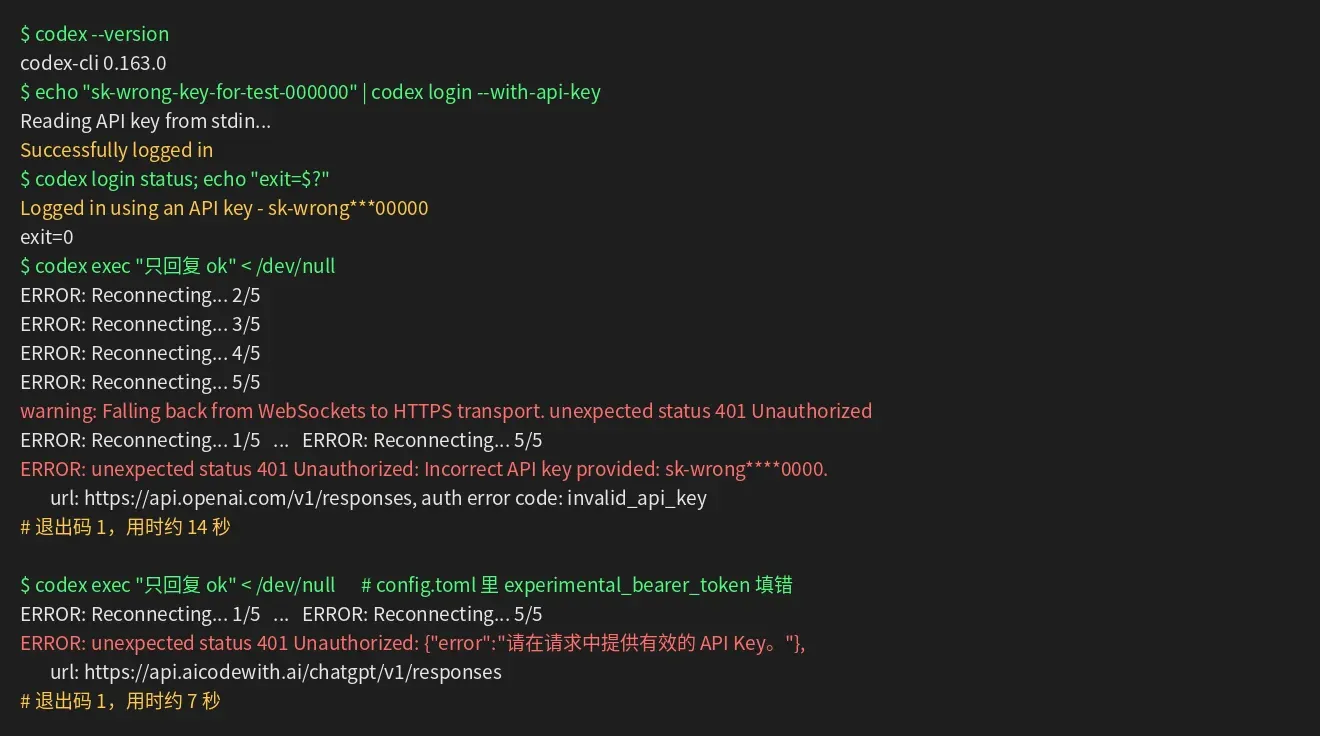
We tested this on Codex CLI 0.163.0 with a deliberately wrong key:
| Test | Result |
|---|---|
| With the wrong key, run codex login --with-api-key | It shows Successfully logged in |
| Then run codex login status | It shows Logged in using an API key, exit code 0 |
| Send a real request | It retries the WebSocket connection 5 times, then switches to HTTPS and retries 5 more times. After about 14 seconds, it exits with a 401, exit code 1 |
| codex logout After that, run codex login status | It shows Not logged in, exit code 1 |
| Enter a wrong key in config.toml's experimental_bearer_token field | It retries 5 times. After about 7 seconds, it exits with a 401, exit code 1 |
codex-401-wrong-key-test
The raw 401 text from each run looks like this. Direct to OpenAI with a wrong key:
ERROR: unexpected status 401 Unauthorized: Incorrect API key provided: sk-wrong****0000. You can find your API key at https://platform.openai.com/account/api-keys., url: https://api.openai.com/v1/responses ... auth error code: invalid_api_key
Connected to AI Code With, with a wrong experimental_bearer_token value:
ERROR: unexpected status 401 Unauthorized: {"error":"请在请求中提供有效的 API Key。"}, url: https://api.aicodewith.ai/chatgpt/v1/responses
So a reliable preflight takes two steps:
# 1. 看登录状态(只对 ChatGPT 登录和 OpenAI API Key 有意义)
codex login status

# 2. 发一条最小请求,能回复 ok 才算认证通过
codex exec --skip-git-repo-check "只回复 ok" < /dev/null
The< /dev/nullat the end of the second command is required.codex execwaits for standard input, and in a script with no input it will hang forever. In Windows PowerShell, just remove that part and run it directly.
codex login status exits with code 1 when you're not logged in and 0 when you are, so you can use it in scripts. But it only tells you credentials are stored locally, not that the key is valid. The second command is still the final check.Path 1: ChatGPT login
If no API key or custom provider is configured, troubleshoot this path:
- Close Codex;
- Run
codex logoutto clear cached credentials; - Run
codex login, sign in again in the browser, and make sure you pick the right account and workspace; - Reopen Codex and run the
codex execpreflight from above.
OpenAI's docs say ChatGPT login sessions refresh their tokens automatically during use, so you rarely need to sign in again under normal use. If you still get a 401, first confirm you signed in with the right account and workspace.
Can't open a browser on the server
On a server without a GUI, log in with a device code:
codex login --device-auth
On another device that has a browser, open the link, sign in, and enter the one-time code.
Path 2: OpenAI API key
First confirm Codex is actually reading the key you expect. Check these in particular:
- Whether the key was copied in full, with no extra spaces, quotes, or line breaks;
- Whether the key belongs to the account, organization, or project you're using;
- Whether you reopened the terminal or app after changing the key;
- If the project or organization has an IP allowlist, whether the request is coming from an allowed network.
OpenAI's documented login method passes the key to Codex through standard input:
printenv OPENAI_API_KEY | codex login --with-api-key
codex login status
Windows PowerShell:
$env:OPENAI_API_KEY | codex login --with-api-key
codex login status
OPENAI_API_KEY For how to store it persistently on your system, see "How to Set Up Codex Environment Variables." Again: a successful login doesn't mean the key is valid. Always finish by running the codex exec preflight.
Path 3: Third-party provider
With a third-party provider, the key, provider name, URL, and model name must all come from the same global config. Different errors point in different directions:
- 401: check the key itself first, and whether Codex picked up the config;
- 404: more likely a wrong URL or path;
model not found: more likely the model name doesn't match the provider.
Two rules that are easy to trip over:
- Providers can only go in the global config. Project-level
.codex/config.tomlcan't overridemodel_providerandmodel_providers. In our test, with the provider only in the project-level config, Codex ignored it, sent the request to OpenAI's official URL, and reported401 Unauthorized: Missing bearer or basic authentication in header. - The command-line
-c/--configoverrides the config file. If a script still passes an old-c model_providers.aicodewith.experimental_bearer_token=..., the config file won't help no matter how correct it is.
For the full config.toml rules, see "Codex config.toml Configuration Guide."
If you're using AI Code With
the standard setup from the AI Code With team is:Put the key directly in the global config.toml, inside the experimental_bearer_token block, so one file does it all and you don't need environment variables or auth.json. For the base URL, go by “Connecting Codex to AICodeWith” and the official integration docs on the day you read this. Verified on October 18, 2026 as https://api.aicodewith.ai/chatgpt/v1.
Step 1: Create an API Key
Step 2: Write the global config
macOS / Linux: open ~/.codex/config.toml (create it if it doesn't exist):
mkdir -p ~/.codex && nano ~/.codex/config.toml
Windows PowerShell: open %USERPROFILE%\.codex\config.toml:
New-Item -ItemType Directory -Force "$env:USERPROFILE\.codex" | Out-Null
notepad "$env:USERPROFILE\.codex\config.toml"
The contents are identical on both systems:
model_provider = "aicodewith"
model = "gpt-6.1-sol"

[model_providers.aicodewith]
name = "aicodewith"
base_url = "https://api.aicodewith.ai/chatgpt/v1"
wire_api = "responses"
experimental_bearer_token = "sk-你的Key"
name = "aicodewith"This line is required. Without it, Codex reportsprovider name must not be empty.modelis set to gpt-6.1-sol, which is what we tested. Before switching to another model, confirm the console supports it.
Step 3: Verify
codex exec --skip-git-repo-check "只回复 ok" < /dev/null
We tested the config above on Codex CLI 0.163.0, and it worked on the first run, responding in 2.7 seconds with ok.
If you still get a 401, check in this order:
experimental_bearer_tokenCheck whether the key inside the quotes has a space or line break before or after it. In our tests, adding one space on each side of the key causes a 401;- Check whether this config was written into the project-level
.codex/config.tomlinstead of the global~/.codex/config.toml; - Check whether the launch command includes
-c/--configthat overrides the key; - Log in to the console and confirm the key hasn't been disabled or deleted. If the key leaked or you're unsure, just create a new one to replace it.
Handling each error message
Below are the four kinds of 401 in OpenAI's official error code docs.
Incorrect API key provided
The API key used in the request is wrong. The most common causes are missing characters or an extra line break from copying, or an old key that has since been deleted. Create a new key and copy the whole thing with the copy button.
Invalid Authentication
The key doesn't match the organization the request belongs to. If you belong to multiple organizations or projects, confirm the key was created under the organization and project you expect.
You must be a member of an organization to use the API
Your account doesn't belong to any organization yet, so ask an organization admin to invite you. This kind of 401 has nothing to do with the Codex config, and editing config files won't fix it.
IP not authorized
Your egress IP isn't on the allowlist. This is the one you're most likely to hit when switching between a corporate network, a VPN, and cloud servers, since the egress IP changes often.
Where the credentials are stored determines where to look
For both ChatGPT login and OpenAI API key paths, credentials may be stored in the local file ~/.codex/auth.json, or in the system credential store, depending on the setting cli_auth_credentials_store:
file: stored inauth.json;keyring: stored in the system credential store, and fails if the store is unavailable;auto: uses the credential store if available, otherwise falls back toauth.json;ephemeral: kept only in the current process's memory and gone when the process exits.
If it's keyring or auto, auth.json may not exist at all, so editing it does nothing. The simplest fix is to codex logout and then codex login. If it's ephemeral, every new process has to re-authenticate, which looks like “it returns 401 again after a while.” For auth.json details, see “What Is Codex auth.json”.
401s in automation and CI
In unattended environments like CI and scheduled jobs, the cause of a 401 often differs from your local machine:
- Confirm the secret was actually injected. For example, PRs from external contributors usually can't access repo secrets, so the key is empty and you get a 401.
- Run a preflight check before the real work. Before the actual task, add a
codex exec "只回复 ok" < /dev/null, so a failure exits right away instead of leaving you to find out after more than ten seconds of retries. - Enterprise workspaces can use access tokens. According to the official docs, ChatGPT Enterprise admins can let members create Codex access tokens and log in with
printenv CODEX_ACCESS_TOKEN | codex login --with-access-token.
For a complete example of running Codex on a schedule, see "cron + codex exec: Auto-Generate a Daily GitHub Trending Report in Chinese".
Changed the Key but still getting the old error?
If the error is exactly the same after you change the Key, first suspect that Codex is still reading the old value:
- Close all terminals and editor windows, then reopen them.
- Check that the global config.toml was actually saved, and whether there is another
.codex/config.tomlin the project directory. - Check whether the launch command or script has an
-coverride. - If you're on the OpenAI API Key path, run
codex login statusand see whether the last digits of the displayed Key have changed.
Habits That Prevent 401s
- One Key per use: Create separate Keys for your local machine, CI, and different projects, so when one breaks you only replace that one.
- Keep Keys out of the repo: Don't commit
config.toml,auth.json, or.env. - Back up before changing config: Copy
config.tomlbefore you edit it, so you can roll back right away if something goes wrong. - If a Key leaks, create a replacement in the console: Disable or delete the old Key immediately. Don't wait.
FAQ
What's the difference between a Codex 401 and a 403?
A 401 means authentication failed: the server doesn't know who you are. A 403 usually means the server knows who you are, but you don't have permission to access the resource. When you hit a 401, check your Key and login status first.
Why does a newly created Key also return 401?
Common causes are an extra space or line break picked up when copying, a Key that belongs to a different project or organization, or Codex still reading an old config. Reopen your terminal and run a codex exec preflight check, then look again.
ChatGPT works fine, but Codex returns 401?
If Codex is configured with an API Key or a third-party Provider, it doesn't use the ChatGPT login, and the two don't affect each other. First confirm which authentication path Codex is actually using.
Still getting 401 after configuring experimental_bearer_token?
Check in this order:
- Is there an extra space, line break, or extra layer of quotes around the Key?
- Did you put it in a project-level
.codex/config.toml? The Provider only reads the global config. - Is it being overridden at launch by
--config(-c)? - Has this Key been disabled or deleted in the console?
I used auth.json to connect to AI Code With before. Do I need to change it?
If it works, there's no rush to change it. For new setups, we recommend using the experimental_bearer_token approach above. If you use auth.json, requires_openai_auth = true must be written under [model_providers.aicodewith], and deleting it will cause a 401.
What should I do about Failed to refresh token: 401?
This error appears on the ChatGPT login path. It means Codex tried to refresh the login session but the server no longer accepts it, for example because the session expired or was revoked elsewhere. Here's how to handle it:
- Run
codex logout, thencodex loginto log in again. - If the error comes from the desktop app or an editor extension, fully quit and reopen the app after logging in again. If that doesn't work, you can restart the local Codex background service:
codex app-server daemon restart
When using experimental_bearer_token to connect a third-party Provider, the Key is fixed in the config, so there is no token refresh step.
Plugin suddenly returns 401 mid-use?
Plugins and connectors (such as Notion and Linear) have their own separate authorization, which is independent of the Codex login. When their authorization expires, the common error is 401 Reauthentication required. Here's how to handle it:
- Find the plugin in Codex's plugin settings, then reconnect and reauthorize it.
- For MCP servers configured from the command line, try logging out and back in first:
codex mcp logout 服务器名称
codex mcp login 服务器名称
Restart Codex after reauthorizing. If it still fails, revoke Codex's authorization on the plugin's own website, then authorize again.
Should a 401 be retried indefinitely?
No. A 401 is an authentication problem, and retrying won't make it go away. In our testing, Codex automatically retries on a 401. When connected directly to OpenAI, it retries 10 times and takes about 14 seconds to exit, and that time is wasted waiting. Fix authentication first, then verify with a minimal request.
Sign up for free and reconnect Codex with a dedicated Key →
Related reading
- "Connecting Codex to AICodeWith: Dedicated Endpoint, Auth Configuration, and Call Verification"
- "Codex config.toml Configuration Guide"
- "How to Configure the Codex API Key"
- "What Is Codex auth.json"
- "How to Set Up Codex Environment Variables"
- "How to Fix Codex 429 Too Many Requests"
- "What to Do About the Codex Error Selected model is at capacity"