
IntelliJ IDEA × AI Code With
Use AI Code With in IntelliJ IDEA: third-party API / relay setup
Use AI Code With inside IntelliJ IDEA through the JetBrains plugin Claude Code with GUI, which reads your local Claude Code setup. Configure the Claude Code CLI Base URL and API key first, then install the plugin to chat and edit code in IDEA — no Provider or model picker inside the IDE. This page covers the setup steps, common errors, and FAQ.
Download IntelliJ IDEA from JetBrains, finish the local Claude Code CLI setup first; the API key only goes into ANTHROPIC_AUTH_TOKEN, never as a real key on this page.
- Plugin
- Claude Code with GUI
- ANTHROPIC_BASE_URL
- https://api.aicodewith.ai
- ANTHROPIC_AUTH_TOKEN
- Your AI Code With API key
- Model
- Follows local Claude Code
Quick setup
Configure the local Claude Code CLI, install the Claude Code with GUI plugin, and use AI Code With inside IntelliJ IDEA in about 3 minutes.
Claude Code with GUI reads the local Claude Code CLI config and does not take a Provider inside IDEA. Export the environment variables first, then install the plugin from the marketplace and verify with a chat.
Configure the Claude Code CLI
In the terminal environment that launches IDEA, set ANTHROPIC_BASE_URL to https://api.aicodewith.ai (no /v1) and put your AI Code With API key in ANTHROPIC_AUTH_TOKEN. Never paste a real key on this page, in screenshots, or in project files. Restart IDEA from that environment so the process can read the variables.
Quick copy
Base URL
https://api.aicodewith.ai
ANTHROPIC_BASE_URL
ANTHROPIC_BASE_URL=https://api.aicodewith.ai
ANTHROPIC_AUTH_TOKEN
ANTHROPIC_AUTH_TOKEN=<your-api-key-here>
Install Claude Code with GUI
In IntelliJ IDEA, open Settings / Preferences → Plugins, search for Claude Code with GUI (plugin ID 30313-claude-code-with-gui), verify the publisher, and click Install. Restart the IDE when the install finishes; a Claude chat tool window appears.
Open the JetBrains plugin pageSearch for Claude Code with GUI in the plugin marketplace, install it, then restart the IDE. Open the plugin and verify
Open the Claude Code with GUI chat panel and send a test message. A normal reply means the setup works. Then open AI Code With usage records and match the request by time to confirm it went through the AI Code With endpoint. The model follows local Claude Code; there is no model picker in IDEA.
Open the plugin chat panel and send a test message. A normal reply confirms the setup; match the call by time in AI Code With usage records.
How does the plugin connect to AI Code With?
Claude Code with GUI does not take a Provider inside IDEA. It reads the Anthropic-compatible endpoint already configured in the local Claude Code CLI. Connecting only needs 3 items:
- ANTHROPIC_BASE_URL
- Set this in the terminal environment that launches IDEA to https://api.aicodewith.ai (no /v1). Claude Code CLI uses that address to reach AI Code With.
- ANTHROPIC_AUTH_TOKEN
- Paste your AI Code With API key. The key stays in the local environment variable and is never written to an IDEA project file or this page.
- Claude Code with GUI
- Install the plugin from JetBrains Marketplace and restart the IDE. The plugin reads the local Claude Code config; the model follows the CLI, so IDEA has no model picker.
Flow: IntelliJ IDEA + Claude Code with GUI → local Claude Code CLI → AI Code With compatible API. Do not fill Provider, Base URL, or Model ID inside IDEA.
Frequently asked questions
Which plugin do I need to use AI Code With in IntelliJ IDEA?
Use the JetBrains plugin Claude Code with GUI. It reads the local Claude Code CLI config and does not take a Provider, Base URL, or Model ID inside IDEA.
Where does the AI Code With API key go?
Put it in the local environment variable ANTHROPIC_AUTH_TOKEN. Never put a real key in an IDEA project file, a screenshot, or chat.
What should I enter as the Base URL?
Set ANTHROPIC_BASE_URL to https://api.aicodewith.ai without the /v1 suffix. The plugin has no Base URL field.
Why am I getting 401?
Usually ANTHROPIC_AUTH_TOKEN is invalid, mistyped, or copied with extra spaces. Re-export it, restart IDEA, and try again.
How do I confirm the setup works?
Send a message in the plugin chat panel. A normal reply confirms the connection; match the request by time in AI Code With usage records.
Don't have IntelliJ IDEA installed?
Download and install IntelliJ IDEA from JetBrains. Community and Ultimate can both install this plugin.
IntelliJ IDEA official download
Download the installer for your platform from jetbrains.com/idea/download, install it, and open the IDE.
Download from the official page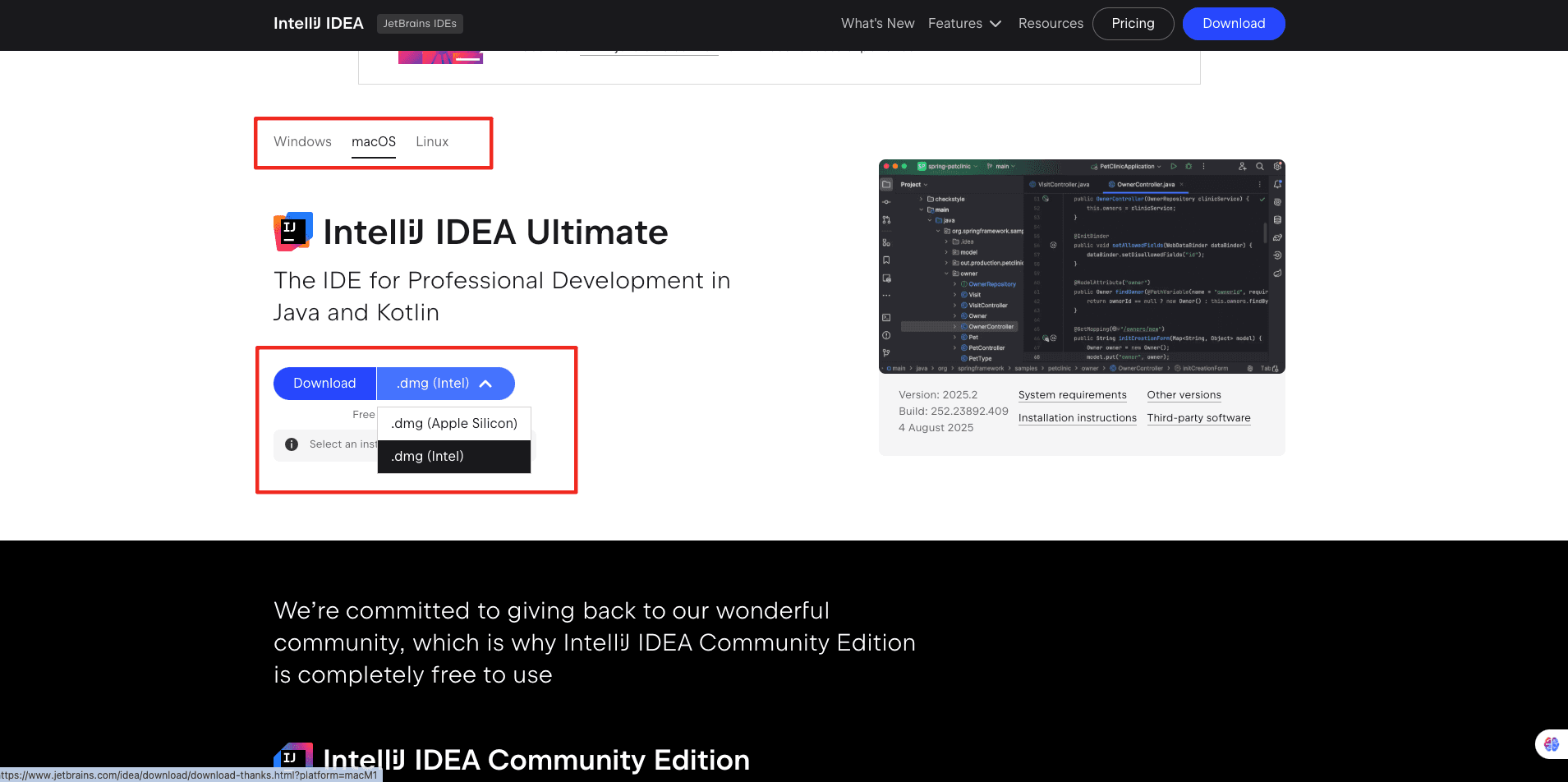
Full install guidance follows the official JetBrains docs; this site does not host or modify installers.
Common error troubleshooting
The most frequent problems fall into 4 categories.
401 / Invalid API Key
Symptom: The plugin returns 401, Unauthorized, or Invalid API Key after sending a message.
Cause: Usually ANTHROPIC_AUTH_TOKEN is invalid, mistyped, or copied with extra characters.
- Re-export the full ANTHROPIC_AUTH_TOKEN (no extra spaces)
- Confirm the key is a valid AI Code With API key
- Restart IDEA and send a message again
Claude Code CLI not found
Symptom: The plugin reports that the Claude command is missing, or it cannot read the local config.
Cause: Claude Code CLI is not installed, or the IDEA process cannot see the claude command.
- Run claude --version in a terminal to confirm the CLI is installed
- Launch IDEA from a terminal that already has the environment variables
- Fully quit and restart IDEA after installing the CLI
Base URL path error
Symptom: The request fails after sending a message, or reports a wrong endpoint path.
Cause: ANTHROPIC_BASE_URL was entered with a /v1 suffix, or points at the wrong host.
- Confirm the value is https://api.aicodewith.ai (no /v1)
- Remove any trailing /v1, /v1/messages, or guessed path
- Restart IDEA and retry
Config not applied / still hitting the official API
Symptom: Messages do not go through AI Code With, or the official endpoint still fails.
Cause: The environment variables were not exported into the IDEA process, or IDEA was not restarted.
- Confirm ANTHROPIC_BASE_URL starts with https://api.aicodewith.ai
- Confirm the IDEA process can read both environment variables
- Fully quit IDEA, restart, send a message, and match it in usage records
Need the full guide?
Every config parameter, the complete model list, and more troubleshooting live in the AI Code With docs.
Open the AI Code With docsSources
- Claude Code with GUI plugin page
- Swttch repository (formerly Claude Code with GUI)
- IntelliJ IDEA official download