Updated 2026-10-29: rewritten for Codex CLI 0.165.0. The third-party provider key now goes straight intoexperimental_bearer_tokenin the global~/.codex/config.tomlinstead of an environment variable. Added a comparison of the three routes, our test log, and a precedence checklist.
Short answer: how you configure a Codex API Key depends on the route you take. With a ChatGPT subscription, run codex login and sign in through the browser. With an official OpenAI key, run codex login --with-api-key. With a third-party service such as AICodeWith, add model_provider and a [model_providers.xxx] table to the global ~/.codex/config.toml and put the key in experimental_bearer_token. Keys from one route do not work on another.
On a clean Linux machine we installed Codex CLI 0.165.0 with a separate CODEX_HOME and set up an AICodeWith key the third way. We asked Codex to add a docstring to a function in app.py: it finished in 15.6 seconds from launch, and the diff touched a single line. Every step and every error we hit is below.
Quick reference: which route to pick
| Route | How to set it up | Where the key comes from | Best for |
|---|---|---|---|
| ChatGPT login | codex login, finish in the browser; without a browser use codex login --device-auth | No key, your ChatGPT account | ChatGPT subscribers and anyone who needs Codex cloud |
| OpenAI Platform Key | codex login --with-api-key, key passed on stdin | OpenAI Platform dashboard | People with an OpenAI API account billed by API usage |
| Third-party provider | model_provider + [model_providers.xxx] in the global ~/.codex/config.toml | The provider's dashboard (for AICodeWith: Key Management) | People who want the provider's endpoint and models |
According to the OpenAI authentication docs, the CLI, the IDE extension and the desktop app all support ChatGPT login and API key login; Codex cloud requires ChatGPT login; with an API key, usage is billed through your OpenAI Platform account at standard API rates rather than your ChatGPT plan credits, and some features that rely on ChatGPT workspaces or cloud services are limited.
Route 1: ChatGPT login
codex login
codex login status
codex login opens a browser and hands the credentials back to Codex. On a remote server or any machine without a browser, use codex login --device-auth and enter the one-time code in a browser on another device. According to the official docs, login details are cached in ~/.codex/auth.json or your OS credential store, the CLI and the IDE extension share them, and logging out of one logs you out of the other.
Route 2: OpenAI Platform Key
Create a key in the OpenAI Platform dashboard and pass it to Codex on stdin, so it never appears in the command itself:
printenv OPENAI_API_KEY | codex login --with-api-key
codex login status
Windows PowerShell:
$env:OPENAI_API_KEY | codex login --with-api-key
To switch back to ChatGPT login, run codex logout and then codex login.
Route 3: a third-party provider (AICodeWith as the example)
Step 1: create a key
- Sign up and log in to AICodeWith
- Click Key Management in the left sidebar, then Create Key at the top right, and give it a name you will recognize
- Copy and save it right away; once the window closes you cannot see the full key again
Step 2: edit the global config.toml
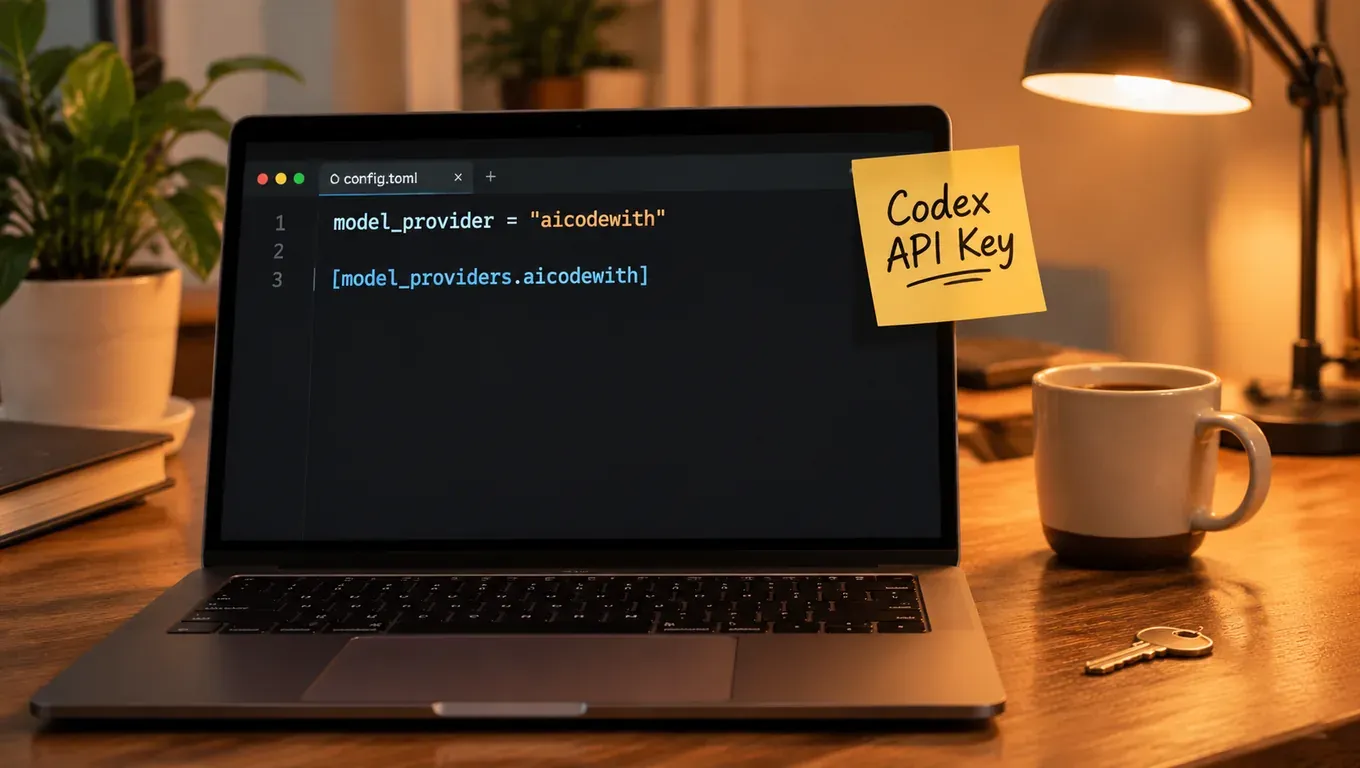
Open ~/.codex/config.toml (on Windows C:\Users\<your user name>\.codex\config.toml; create it if it does not exist) and add:
model_provider = "aicodewith"
model = "gpt-6.1-sol"
model_reasoning_effort = "low"

[model_providers.aicodewith]
name = "aicodewith"
base_url = "https://api.aicodewith.ai/chatgpt/v1"
wire_api = "responses"
experimental_bearer_token = "sk-your-key"
Things to get right:
- The value of
model_providermust match theaicodewithin the table name[model_providers.aicodewith]. - The key goes straight into
experimental_bearer_token. It applies to every project, and you do not have to set an environment variable in each new terminal. - Take
base_urlandmodelfrom your provider's setup guide. The full AICodeWith walkthrough is in Codex with AICodeWith, and every field is explained in the Codex config.toml guide. - This file holds the key in plain text: do not commit it to Git, screenshot it or paste it into a chat.
Step 3: run a minimal task to confirm
Inside a Git project, run a small task in non-interactive mode:
codex exec -s workspace-write "Add a docstring to greet in app.py and change nothing else"
Our run (Codex CLI 0.165.0, gpt-6.1-sol, reasoning effort low) started with this header:
OpenAI Codex v0.165.0
--------
workdir: /tmp/cx22/proj
model: gpt-6.1-sol
provider: aicodewith
approval: never
sandbox: workspace-write [workdir, /tmp, $TMPDIR]
reasoning effort: low
Codex found greet with rg, applied a patch and reported that it had added the docstring and changed nothing else. git diff showed a single line:
 def greet(name):
+    """Return a greeting for the given name."""
     return "hi " + name
The whole run took 15.6 seconds. If you see provider: aicodewith, the config is in effect. In the interactive UI, type /status and check the Model provider line.
Withexperimental_bearer_token,codex login statusreportsNot logged in. That is what we saw in our test, and the task above still ran fine. Judge by theproviderline and by whether the task completes, not by login status.
Common errors and fixes
401 Unauthorized: the key is wrong
We deliberately replaced experimental_bearer_token with a wrong key. Codex reconnected 5 times and exited after 7.5 seconds with this last line:
ERROR: unexpected status 401 Unauthorized: {"error":"请在请求中提供有效的 API Key。"}, url: https://api.aicodewith.ai/chatgpt/v1/responses
(The message in quotes is the server's Chinese text for "please provide a valid API Key in the request".) Check in this order:
- Look at
url. If it is your provider's address, the config is loaded and the problem is the key itself: was it copied in full, are there extra spaces or quotes, has it been deleted in the dashboard? - If
urlisapi.openai.com, Codex is not using your provider at all. When we removedmodel_providerand ran again, the log switched toprovider: openaiand returned 401 fromwss://api.openai.com/v1/responses. Go back and check themodel_providerline and the table name.
More 401 cases: How to fix Codex 401 Unauthorized.
You changed the key and it still fails
- You edited the wrong file. Provider settings and the key belong in the user-level
~/.codex/config.toml(or a profile file selected with--profile). According to the official advanced config docs, a project's.codex/config.tomlignoresmodel_provider,model_providersand similar keys. We putmodel_provider = "openai"in a project config, and the run still showedprovider: aicodewith. - You changed an environment variable, not the config. This setup does not read
OPENAI_API_KEY. We setOPENAI_API_KEYto a fake value and the task still completed, so Codex was usingexperimental_bearer_token. To change keys, edit that line in config.toml. - A different CODEX_HOME is in use. If the
CODEX_HOMEenvironment variable is set, Codex reads config.toml from that directory, not from~/.codex. - You did not restart. After editing the config, quit Codex and start it again before retrying.
- It is really a 429. If the key is fine but you hit a rate limit or your balance is too low, you get a 429; see Codex 429 Too Many Requests.
Config does not take effect: check precedence
According to the official config docs, Codex resolves values in this order, highest first:
- Command-line flags and
-c/--config - The project's
.codex/config.toml(trusted projects only; the file closest to your working directory wins) - The profile file selected with
--profile,~/.codex/<name>.config.toml - The user-level
~/.codex/config.toml - System config and built-in defaults
We tried each one:
| What we did | Result |
|---|---|
| codex exec -c model='"gpt-6.1-nope"' | Log showed model: gpt-6.1-nope and a "model does not exist" error in 0.5 seconds; the command line overrode the global config |
| model = "gpt-6.1-nope2" in the project .codex/config.toml | Also used, same "model does not exist" error; a project config can change model |
| model_provider = "openai" in the project .codex/config.toml | Ignored; still provider: aicodewith, normal reply in 13.3 seconds |
| The same table written twice in the global config | Codex exits at once: Error loading config.toml ... duplicate key |
So when the config seems ignored, check three places: is there a -m or -c on the command line, does the project have a .codex/config.toml that changes model, and does the global config contain a duplicated table or key (pasting a block twice is common)? Environment-variable pitfalls are covered in How to set Codex environment variables.
Keeping ChatGPT login and a third-party key side by side
Move the provider lines into a separate profile file such as ~/.codex/aicodewith.config.toml and leave model_provider out of the global config.toml. When you need it:
codex --profile aicodewith
codex exec --profile aicodewith "Reply with just OK"
In our test, with --profile aicodewith the log showed provider: aicodewith and replied OK in 8.2 seconds; without it, Codex fell back to provider: openai. For multiple projects and keys, see Codex multi-project configuration.
FAQ
codex login status says Not logged in. Is my setup broken?
Not necessarily. That is how it reports when you use a third-party provider's experimental_bearer_token. Go by the provider line in the run log and whether tasks complete.
Do I still need OPENAI_API_KEY?
Not for a third-party provider. OPENAI_API_KEY is only used in route 2 to pass the key to codex login --with-api-key.
Can I put the key in a project's .codex/config.toml?
No. Project configs ignore provider settings. Put the key and the provider in the user-level ~/.codex/config.toml or in a profile file.
Can a third-party key be used to sign in to ChatGPT or the OpenAI Platform?
No. A third-party key only works in that provider's table, and an OpenAI key or ChatGPT account cannot be used with a third-party service either.
I have not installed Codex yet. Where do I start?
Start with the Codex installation guide, then come back to set up the key. For what to do next, see How to use Codex.