AI Code With · Practical Codex Tutorial
When most people first start tinkering with Codex's API Key, a custom Provider, or the Base URL, they end up running into one file:
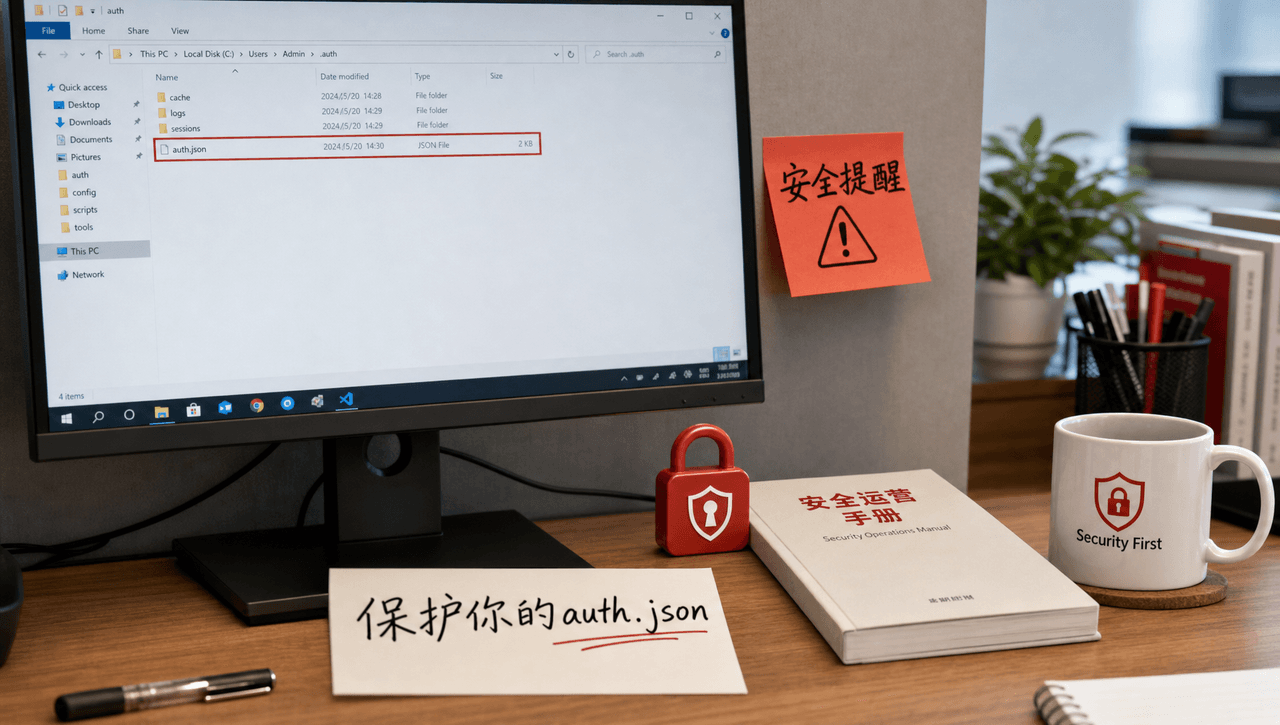
~/.codex/auth.json
And then it's easy to come away with a misconception: since it's a JSON file, it must be Codex's config file, right?
It's not.
auth.json is closer to an access card that holds your login credentials than to an ordinary config file that tells Codex which model to use and which address to call.
If you don't get this straight, strange problems follow: editing auth.json just to switch models, overwriting the file over and over after a 401, or even posting a screenshot of its full contents to someone else for help.
More seriously, if Codex stores your login state in a file, auth.json contains sensitive access credentials. Treat it like a password. Don't commit it to Git, paste it into a ticket, or drop it in a group chat.
The short version: auth.json is about who you are, config.toml is about how you use it
The easiest way to understand Codex's local configuration isn't to memorize file names. It's to separate two concerns first.
auth.json: handles authentication
It mainly stores the login credentials Codex has already obtained.
Think of it as the identity Codex uses to access the corresponding service.
config.toml: handles how Codex runs
For example: which model is in use, which model provider is in use, what the Base URL is, how the Provider is defined, and which API the requests use. This is much closer to what we'd call real configuration.
So if you just want to switch models, you should usually look at config.toml. If you want to move Codex from the official OpenAI Provider to a custom Provider, you'll mainly be working in config.toml and the matching authentication method.
If you hit "the config is all correct, but the server keeps returning 401 and says the API Key is missing," that's when you should start checking whether the credentials are actually being passed in.
The most important dividing line: model, Provider, and Base URL belong to the configuration layer. Authentication credentials belong to a separate layer.
Where exactly is Codex's auth.json?
By default, Codex's local state directory is usually:
~/.codex/
If credentials are cached in a file, the file is usually:
~/.codex/auth.json
On macOS and Linux, ~ stands for the current user's Home directory, for example:
/Users/your-username/.codex/auth.json
On Windows, it maps to .codex under the current user's directory.
There's one easy thing to misjudge here: not finding auth.json doesn't mean Codex isn't logged in.
Codex can use file storage or the operating system's credential store. A typical configuration looks like this:
# file | keyring | auto
cli_auth_credentials_store = "keyring"
Where:
• file: stores credentials in auth.json under CODEX_HOME.
• keyring: hands credentials to the operating system's credential store.
• auto: uses the system credential store when available, and falls back to a file otherwise.
So if you're wondering "why does someone else's machine have an auth.json but mine doesn't?", don't rush to create one yourself. You may simply be using keyring.
Why you shouldn't treat auth.json like an ordinary config file
Because it doesn't hold parameters you can afford to leak. With file-based credential caching, auth.json contains access tokens, so it should be protected like a password.
This is a completely different security level from a config like the following:
model = "gpt-5.6-sol"
Someone seeing your model name is usually harmless, but once an API Key, Access Token, or login credential leaks, someone else may gain direct access to call the service as you.
So something like the following looks like a simple question, but it's actually high risk:
"My Codex stopped working. Can someone take a look at my auth.json?"
And then the whole file gets pasted into a group chat. Don't do that. When troubleshooting, share a redacted config, the error text, the Provider name, the Base URL, and the model name, not the full credentials.
When should you not touch auth.json first?
Case 1: You just want to switch models
Say your current model is gpt-5.6-sol and you want to switch to another one. That's a model configuration issue, not an authentication issue, so leave auth.json alone.
Case 2: You just want to switch Providers
If you're moving from the official OpenAI Provider to a custom Provider, the core of the change still belongs in the Provider definition. Conceptually it looks like this:
model_provider = "my_provider"
[model_providers.my_provider]
name = "my_provider"
base_url = "..."
wire_api = "responses"
requires_openai_auth = true
Keep the two apart here: the Provider decides where requests are sent, and the credentials decide whether you're allowed to call it. These are two separate problems.
Case 3: The Base URL is wrong
This is also a configuration problem. Say requests should go to A, but you wrote B. You could change the API Key ten times and it still wouldn't fix a wrong URL.
Case 4: The CLI works, but Desktop keeps returning 401
This scenario is very common. Codex CLI works fine, but the desktop app keeps returning 401 Unauthorized. Many people's first instinct is that auth.json is broken, but that's not necessarily the case.
At minimum, you should also check: whether the CLI and Desktop actually use the same Provider, whether the API Key is reachable from both, whether the Base URL matches, whether the desktop app picked up the required environment variables, and whether both sides use the same authentication method.
"See a 401, delete auth.json" is a dangerous troubleshooting habit. A 401 only proves that your request reached a service and authentication failed.
How to troubleshoot official Codex login
If you're using official OpenAI authentication, don't delete files as your first step. Check the status first:
codex login status
If you do need to clear the existing login state, run:
codex logout
Then log in again:
codex login
If you're using an API Key, pass the Key to Codex securely using the current official authentication method, rather than writing the full Key into a public script or leaving it in chat history.
A note: prefer the official logout / login flow over deleting the entire ~/.codex directory. The latter may wipe out your other settings as well.
A more practical order for troubleshooting a 401
1. Check the authentication status first
First confirm whether you're currently using ChatGPT login, an API Key, or some other authentication method.
2. Then check the Provider
Check model_provider so you don't assume you're going through OpenAI when requests are actually going to a custom Provider.
3. Then check the Base URL
The actual request URL in the error message is often more valuable than the model name.
4. Check whether the API key actually reaches the current process
This matters most when the CLI works but Desktop doesn't. Don't assume both run in the same environment.
5. Re-authenticate only as a last resort
Once you've confirmed the credential state is broken, use logout / login instead of deleting the directory outright.
If you use AI Code With to Codex, and what role does auth.json play?
Through AI Code With When you connect a custom provider like this to Codex, you usually deal with two layers: credentials and provider configuration.
A typical setup works like this: auth.json or another secure credential store holds the key, while config.toml defines the provider, base URL, model, and request method.
{
"OPENAI_API_KEY": "你的_API_KEY"
}
Meanwhile, the provider and base URL should be configured in config.toml.
auth.json = Key; config.toml = Provider + Model + Base URL.
The two files are often configured together, but they do different jobs. When something breaks, troubleshooting them separately is much faster.
A better approach: create a dedicated Key for Codex
Don't copy the same Key everywhere: Codex, Claude Code, test scripts, websites, and other devices. It's convenient in the short term and very hard to debug in the long term.
A better approach is to create a separate Key for each purpose, for example:
Codex-MacBook
Claude-Code-MacBook
test-project-A
server-B
That way, if the Codex Key ever does leak, you only need to revoke that one, and your other projects aren't dragged into it.
API Key management on AI Code With also fits this "one key per purpose" approach: create a separate Key for each use, name it clearly, and when it's time to rotate, touch only the Key that needs it.
A real-world example: why one key per purpose matters
Say you're using Codex, Claude Code, and an internal company script at the same time, and to save effort you use Key-A for all of them.
One day, while troubleshooting Codex, you accidentally capture auth.json in a screenshot for a tutorial.
Now the problem isn't just "the Codex Key leaked." The Key shared by all three systems may have leaked. You have to check and migrate all of them together.
If you started with this setup:
Key-Codex
Key-Claude
Key-Internal
then all you need to do is:
Revoke the Key-Codex
↓
Create a new Key
↓
Reconfigure Codex
And that's the end of it.
The real value of key management isn't whether you can create a key. It's whether you can keep the blast radius small when something goes wrong.
After auth.json leaks, deleting the file is not enough
Say you accidentally push auth.json to GitHub, post a screenshot in a group chat, drop it into a public issue, or paste it into an online tool.
If all you run at that point is:
rm ~/.codex/auth.json
the credential that already leaked does not become invalid. All you deleted is the copy on your own machine.
A safer order of operations looks like this:
• Stop the spread.
• Revoke or rotate the credential in the corresponding service.
• If it got into Git, check the commit history, not just the current file.
• Check other copies, such as tickets, chat logs, and screenshots.
• Confirm that the old credential can no longer be used.
Git in particular: deleting the current file ≠ removing it from history
For example, if you run git rm auth.json and commit again, the latest version really no longer has the file, but earlier commits may still contain the sensitive content.
When a credential has actually leaked, the priority should always be to revoke the credential first, then think about cleaning up history. Once the old key is dead, even if someone digs up that value later, they can't use it to make any more calls.
One more point that is easy to misread: auth.json is not "never copy, ever"
For normal personal use, the rule still holds: don't casually copy, send, or upload auth.json.
But in trusted, controlled remote or browserless environments, you may need to move the auth cache. The key question isn't whether you can copy it, but whether you're in a clear, trusted, controlled infrastructure scenario.
A more accurate way to put it: auth.json is not an ordinary config file, and you shouldn't copy it around just to save time.
file, keyring, or auto: which one should you pick?
keyring
Hands your credentials to the operating system's credential store. The upside is that sensitive credentials are less likely to be exposed as a plain file.
file
Credentials are stored in auth.json. The upside is that it's visible and easy to migrate, but you have to treat this file like a password.
auto
Prefers the system credential store and falls back to a file when it isn't available.
The point isn't to crown one approach as the best. It's to know which one you're using right now. Otherwise, you may spend your debugging time hunting for an auth.json that doesn't exist.
Can I open auth.json and look at it?
Yes, you can. "Sensitive file" doesn't mean you're not allowed to open it. What you actually want to avoid is editing it carelessly, taking full screenshots of it, pasting it into online tools, committing it to Git, or sending it to support or a group chat.
If you just want to confirm whether it exists, start by looking at the directory:
ls -la ~/.codex
If you do need to view the contents, keep in mind that your terminal screen can end up in screenshots, screen recordings, or logs. If you can avoid displaying the full credential, do.
When you hit a 401, use this table to narrow it down quickly
| Symptom | Check first |
| codex login status shows not logged in | Login state |
| Official OpenAI login suddenly stops working | logout / login |
| Custom Provider returns 401 | Key, Provider, Base URL |
| CLI works, Desktop returns 401 | Whether Provider / environment / Key match on both sides |
| Error after switching models | Model ID and Provider support |
| Can't find auth.json | Whether you're using keyring |
| API Key leaked | Revoke / rotate it immediately |
| Still failing after deleting auth.json | Keep checking the Provider and configuration instead of fixating on the credential file |
Finally, treat auth.json as a key, not a manual
auth.json handles authentication; config.toml handles configuration.
If the model, Provider, or Base URL is misconfigured, don't keep fiddling with the auth file. And if authentication really is the problem, don't jump straight to deleting the entire .codex directory.
A more reliable approach:
First, confirm the authentication method
↓
Then confirm the Provider
↓
Check the Base URL
↓
Confirm the Key is actually taking effect
↓
Log in again if necessary
If you use a custom Provider like AI Code With, take one extra step: create a dedicated Key for Codex. That way, when you hit a 401, switch computers, switch Providers, or suspect a Key leak, troubleshooting is much simpler.
Secure credential management doesn't mean being afraid to touch your configuration. It means knowing exactly which file does what, which key has a problem, and which one to replace when something goes wrong.
Related reading
• How to configure a Codex API Key
• Codex config.toml configuration guide
• How to switch Codex Providers
• Troubleshooting Codex Desktop 401 / Unauthorized errors
• Creating and managing API Keys with AI Code With
Sources
OpenAI Codex Authentication: https://developers.openai.com/codex/auth
AI Code With: Creating and Managing API Keys: https://docs.aicodewith.ai/zh/docs/create-api-key
AI Code With Codex CLI documentation: https://docs.aicodewith.ai/zh/docs/codex-cli