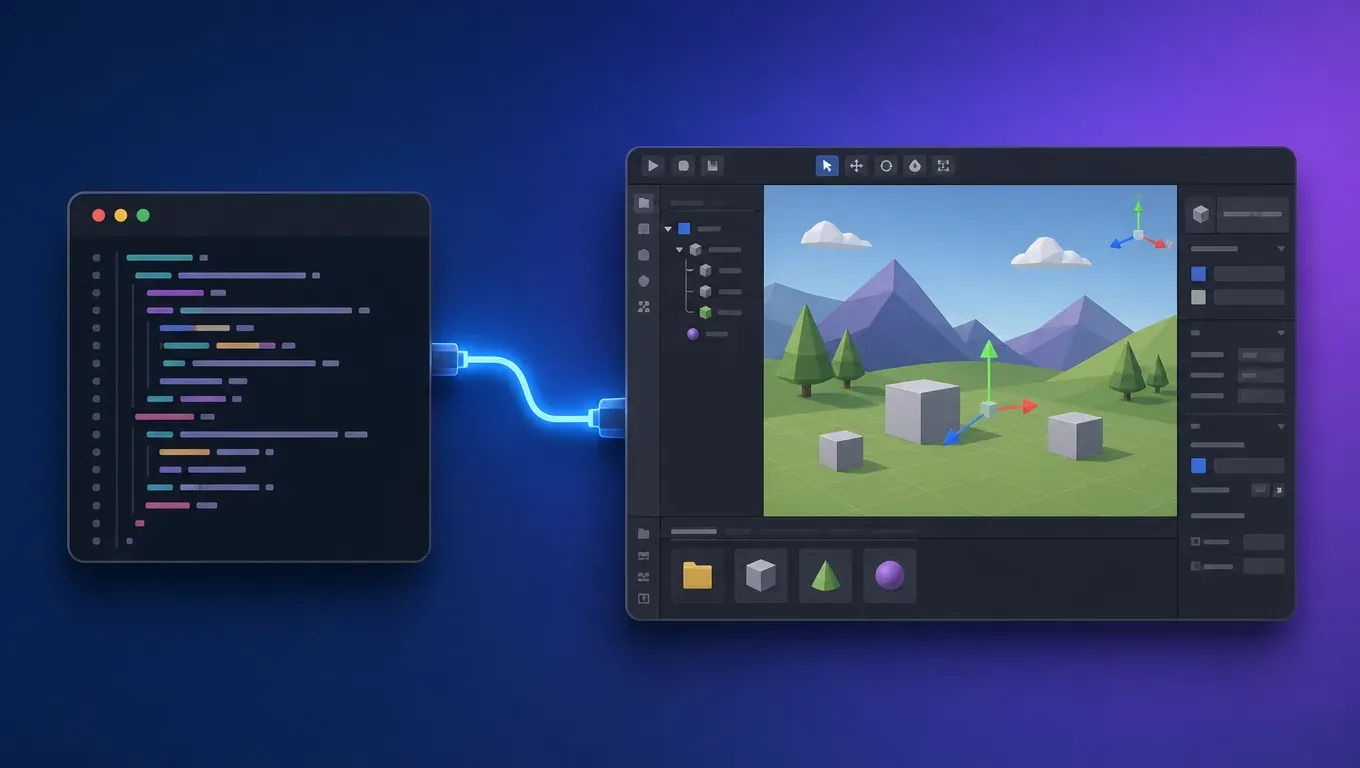
The short answer: To control Unreal Engine (UE5) with Claude Code, you need to set up both sides: turn on the Unreal MCP server in the editor, and install Epic's official plugin unreal-engine-skills-for-claude-code in Claude Code. The plugin teaches Claude Code how to use UE's tools, but the MCP server in the editor does the actual work, so the editor has to stay open.
We tested the Claude Code side on Claude Code 2.1.302 using an AICodeWith Key:
- adding the official plugin marketplace took 2.2 seconds, installing the plugin took 2.5 seconds, and the whole process never asked us to log in to an Anthropic account
- . After installation, the plugin's 3 skills and 1 startup hook all loaded normally. In a directory containing
.uproject, Claude Code recognized the project as an Unreal project when we opened it - When the editor isn't open,
/mcpshows unreal-mcp as failed to connect, but Claude Code still starts normally
What this plugin is
unreal-engine-skills-for-claude-code is the Claude Code Unreal Engine plugin from Epic Games. It's MIT-licensed and listed in Anthropic's official plugin marketplace claude-plugins-official. As of October 18, 2026, the latest version is 3.1.1 (updated September 17).
Many people search for "how to connect Unreal MCP" or "Unreal Engine MCP", and what they mean is the editor-side half in the table below. The setup works as two parts working together:
| Part | Where it lives | What it does |
|---|---|---|
| Unreal MCP (plugin name ModelContextProtocol) | Inside the UE editor | Runs an MCP server inside the editor process and exposes engine features as tools the AI can call |
| unreal-engine-skills-for-claude-code | Inside Claude Code | Provides usage instructions (skills) and a startup hook so Claude Code knows how to call these tools |
Epic introduces Unreal MCP in its Unreal Engine 5.8 documentation, "Unreal MCP in Unreal Editor," and labels it as an experimental feature: many capabilities are incomplete, and the interfaces and data formats can change at any time. Keep that in mind before using it in a production project.
Prerequisites
- Unreal Editor, with the ability to enable both the ModelContextProtocol (Unreal MCP) and AllToolsets plugins
- Claude Code, with the API already configured (see the next section)
- A working bash: it ships with macOS and Linux. On Windows, install Git for Windows (which bundles Git Bash) or run Claude Code inside WSL
Step 1: Configure the API for Claude Code
Write the endpoint and key into the global config file ~/.claude/settings.json, under env. That way you don't need to run export in the terminal:
{
  "env": {
    "ANTHROPIC_BASE_URL": "https://api.aicodewith.ai",
    "ANTHROPIC_AUTH_TOKEN": "sk-你的Key"
  }
}
For more configuration options, see "How to Connect Claude Code to a Third-Party API". For multi-step tasks like driving the editor, see "Which Model to Use with Claude Code" to pick a suitable one.
Step 2: Turn on Unreal MCP in the Editor
Enable the two plugins
In the UE editor, open Edit > Plugins:
- Search for Unreal MCP and check Enabled.
- Search for All Toolsets and check Enabled.
- Restart the editor when prompted.
You must enable AllToolsets. Unreal MCP only handles the server and the connection. The tools all live in AllToolsets. If you enable only Unreal MCP, the server will start, but you won't get a single tool. If you only want to expose some of the tools, you can skip AllToolsets and enable just the toolset plugins you need.
Start the MCP server
Open the editor console (the backtick key by default) and enter:
ModelContextProtocol.StartServer
By default, the server listens on http://127.0.0.1:8000/mcp, and you can see the startup message in the Output Log. If port 8000 is already in use, add a different port number after the command, for example:
ModelContextProtocol.StartServer 8010
If you don't want to start it manually every time, go to Edit > Editor Preferences > General > Model Context Protocol and turn on Auto Start Server. You can change the port and path there too.
Generate .mcp.json
In the console, enter:
ModelContextProtocol.GenerateClientConfig ClaudeCode
It generates the file Claude Code uses, .mcp.json, which looks like this:
{
  "mcpServers": {
    "unreal-mcp": {
      "type": "http",
      "url": "http://127.0.0.1:8000/mcp"
    }
  }
}
Where the file gets written depends on your engine. For engines installed through the Epic launcher, it goes next to.uproject. For engines built from source, it goes in the workspace root that containsEngine/. After that, in this directory to launch Claude Code. After you change the port or path, run this command again. It merges the update and won't overwrite your other settings.
Step 3: Install the plugin in Claude Code
Run this inside a Claude Code session:
/plugin install unreal-engine-skills-for-claude-code@claude-plugins-official
If you get a message that the plugin can't be found or the marketplace doesn't exist, add the official plugin marketplace first, then install again:
/plugin marketplace add anthropics/claude-plugins-official
You can also skip the session and install from the terminal:
claude plugin marketplace add anthropics/claude-plugins-official
claude plugin install unreal-engine-skills-for-claude-code@claude-plugins-official
On a fresh machine, we ranclaude plugin installdirectly and gotnot found in marketplace "claude-plugins-official". The new machine had never opened an interactive session, so the official plugin marketplace wasn't registered. After runningmarketplace addfirst, the install finished in 2.5 seconds.
Team-wide installation
Commit the following to your project's .claude/settings.json. When teammates trust the project directory, Claude Code prompts them to install automatically:
{
  "enabledPlugins": {
    "unreal-engine-skills-for-claude-code@claude-plugins-official": true
  }
}
This is project-level config and should only hold the plugin toggle. Each person keeps their own API endpoint and key in their own global ~/.claude/settings.json, and those should not be committed to the repo.Step 4: Verify the connection
Check in this order:
- The editor is open, and you've already run
ModelContextProtocol.StartServer; - In Claude Code, enter
/plugin, and Installed on the tab you can seeunreal-engine-skills-for-claude-code; - Enter
/mcpand you can seeunreal-mcp; - Ask it to do something simple, for example:
List all actors in the current level(list all Actors in the current level).
The first time you open Claude Code in a project directory, it asks whether to use the unreal-mcp server in .mcp.json. The default option is "Continue without using this MCP server," so you have to manually pick Use this MCP server. Otherwise, /mcp won't connect to it.
Here's what we saw in testing (the machine had no UE editor, so the MCP server was off):
| Check | Result |
|---|---|
| claude plugin list | unreal-engine-skills-for-claude-code@claude-plugins-official, version 3.1.1, enabled |
| What's in the plugin | 3 skills (unreal-mcp, create-toolset, unreal-skill) and 1 SessionStart hook, no bundled .mcp.json |
| Plugin installed only, no .mcp.json in the directory | /mcp does not list unreal-mcp |
| There is a .mcp.json, but the editor isn't open | No error is shown at startup;/mcp shows unreal-mcp as ✘ failed, because ECONNREFUSED |
| Claude Code was started in a directory with .uproject in it | The hook runs normally, and Claude Code answers "This is an Unreal Engine project, based on the SessionStart hook" |
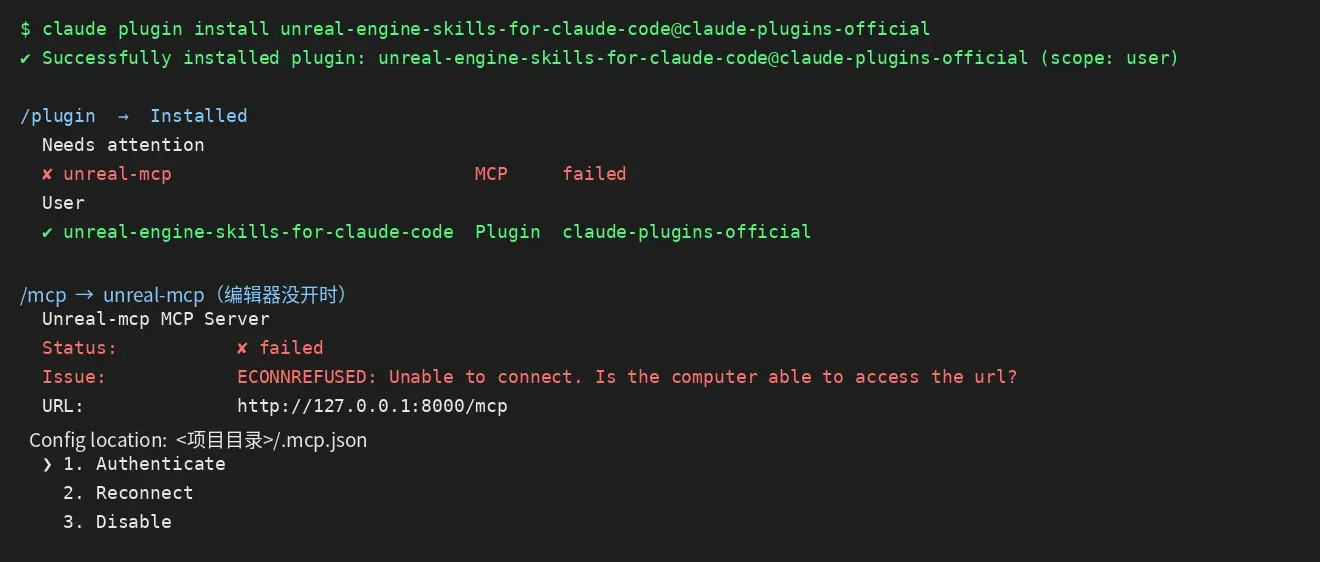
claude-code-unreal-mcp-status
Once the editor is open and the server has started, you don't need to restart Claude Code. In /mcp, select unreal-mcp and click Reconnect to reconnect.
What it can do
The plugin description says it covers most of the editor's functionality through more than 30 toolsets and several hundred tools. By category, they roughly break down as follows:
| Category | What it can do |
|---|---|
| Actors and scenes | Spawn, move, inspect, and delete Actors, and manage components and Outliner folders |
| Blueprints | Create and edit Blueprint graphs, add nodes, connect pins, manage variables, and compile |
| Assets and content | Find, load, save, move, and duplicate assets, and edit Data Tables, Curve Tables, and String Tables |
| Materials | Author material graphs, and create and configure material instances |
| Meshes and textures | Inspect and edit static meshes, skeletal meshes, LODs, collision, Nanite, sockets, and bones |
| Animation | Build Control Rigs, and inspect State Trees and behavior trees |
| Sequencer | Create and edit Level Sequences, set keyframes, manage cameras, and import and export FBX |
| VFX | Author Niagara systems and Dataflow graphs |
| UI | Build UMG widget Blueprints and automate Slate UI |
| Gameplay | Manage Gameplay Tags, inspect GAS state, create Game Feature plugins, and edit physics assets |
| Testing | Find and run C++ automation tests and view the results |
| Editor | Take screenshots, control the camera, select Actors and assets, use the Content Browser, and view logs |
| Scripting | Combine multiple tool calls into a single Python script and run it in one go |
With this many tools, they don't all get stuffed into the context at once. Unreal MCP enables "tool search" by default, so it exposes onlylist_toolsets,describe_toolset,call_toolthree tools. Claude Code looks up only the category it needs, which saves context. To register all tools at once, you can turn off thebEnableToolSearchsetting.
To learn how the skills in the plugin get triggered, see “How to Use Claude Code Skills”. For how to install other official plugins, see “How to Install Claude Code Role Plugins”.
Security Settings
Installing this plugin effectively lets Claude Code operate the editor you're running in real time. Epic included a few warnings in the plugin docs:
execute_tool_scriptcan run arbitrary Python. This tool executes Python inside the editor process, can call every tool, and can read and write the project and assets on disk. Treat every call as a high-privilege operation.- Don't use it with
--dangerously-skip-permissionsenabled. This flag removes the confirmation before every tool call, so Claude Code can modify the editor and run Python without your approval. One badly worded prompt could change a large part of your project before you notice. If you do use it, limit it to read-only or very small tasks, ideally in a throwaway test project. - Commit to version control before any long-running operation. MCP tools modify objects in the editor directly, and a single call can move or delete version-controlled assets. Save and commit (or shelve) before you start, then review the diff before you commit the results.
- Localhost is not the same as safe. The service only listens on a local address, which keeps browser pages from reaching it. But any other program running as the same user on the machine can connect to that port, and there is no authentication. Don't run this service on a shared or untrusted machine, and don't expose the port beyond localhost.
Epic's docs also note that the editor executes tool calls one at a time on the game thread. Run operations that depend on each other or modify the same thing sequentially, not concurrently.
Troubleshooting
SessionStart hook not running on Windows?
The plugin's startup hook is a bash script. Native Windows PowerShell has no bash, so the hook won't run. Install Git for Windows (which ships with Git Bash) or run Claude Code inside WSL and it will work. A hook that doesn't run doesn't affect the MCP tools. You just lose the opening hint that this is an Unreal project, so Claude Code won't default to answering in UE conventions.
Can't see unreal-mcp in /mcp?
Check the following in order:
- Is the editor running
ModelContextProtocol.GenerateClientConfig ClaudeCode? The plugin itself doesn't include.mcp.json, installing the plugin alone won't make unreal-mcp show up. - Check whether Claude Code was launched in the directory where
.mcp.jsonlives (for the launcher build, it's next to.uproject; for the source build, it's the workspace root). - Check whether you chose "Continue without using this MCP server" the first time you opened it. In a terminal, run
claude mcp reset-project-choicesto clear that earlier choice, then reopen Claude Code and choose Use this MCP server this time. - If it shows up but displays
✘ failedwith the reasonECONNREFUSED, the editor isn't open or the service hasn't started. After starting it, click Reconnect in/mcp.
What if port 8000 is already in use?
If the editor log shows Failed to listen on port, another program is holding port 8000. Run ModelContextProtocol.StartServer 端口号 in the console to switch to a different port, or change the default port in Editor Preferences.After changing it, be sure to rerun ModelContextProtocol.GenerateClientConfig ClaudeCode so the address in .mcp.json updates to match. Otherwise Claude Code will keep connecting to the old port.
Can I use this plugin with a third-party API?
Yes. Installing the plugin just pulls files from GitHub. Throughout our setup we only configured an AICodeWith key, no login prompt appeared, and the plugin's skills and hooks loaded normally. The Unreal MCP service runs on your own machine, and Claude Code connects directly to a local address. That's separate from which API endpoint your model requests go through.
Will Claude Code throw an error if the editor is closed?
It won't block startup. In our testing with the editor closed, Claude Code opened as usual. The only difference is that unreal-mcp shows a connection failure in /mcp, so naturally it can't operate the editor at that point. Once the editor is open, just click Reconnect in /mcp.
Sign up now and use Claude Code to work on your UE5 project →