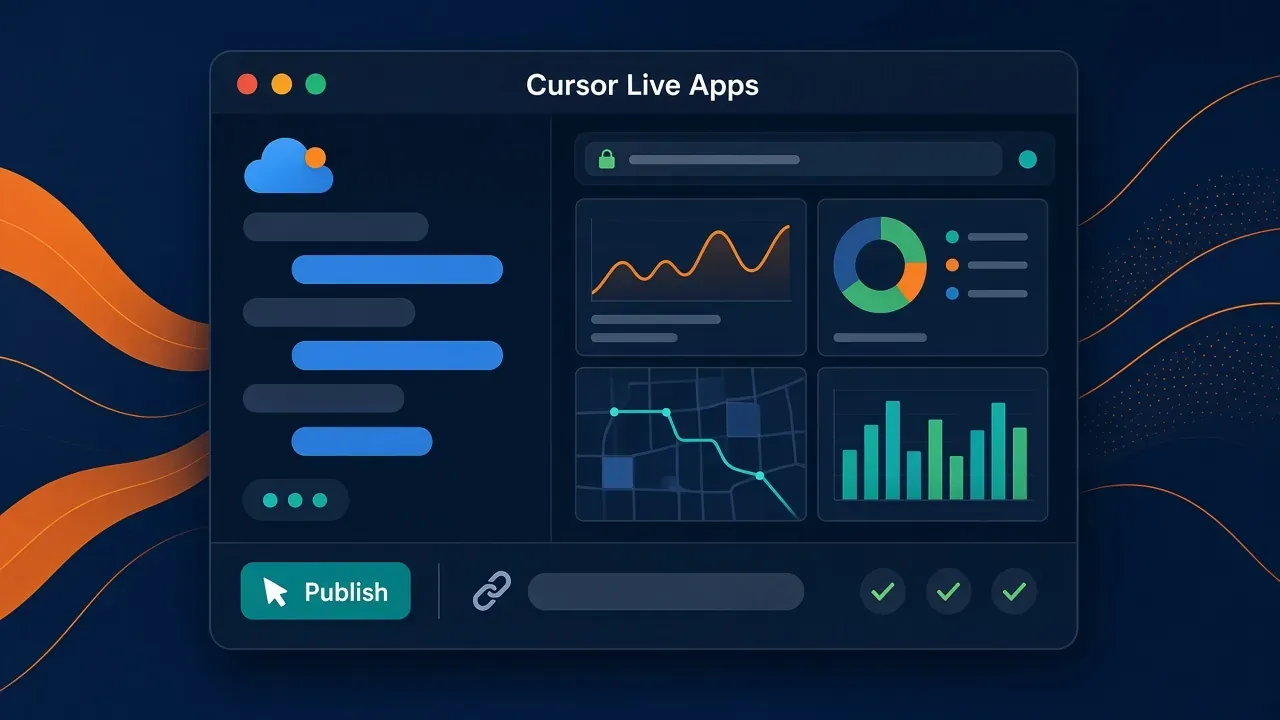
The short version: Cursor Live Apps (called Apps in the docs) is a Cloud Agent feature, not a local-agent feature. After you say clearly that you want to build an app, the Cloud Agent scaffolds the web app, provisions Postgres if needed, and sets up auth and Secrets. A preview tray then appears. You click Publish, pick a URL, and receive a shareable live link only after deterministic and agentic security checks pass. Official docs say Apps is available on all paid plans with access to cloud agents, and that it is not supported locally.
Create API Key and connect this site's API to your Live App through Secrets →
What happened
- According to the @cursor_ai official account (published 05:41 Asia/Shanghai on 6 November 2026): you can now build live apps in Cursor and share them with a link. The post says agents have made it easier to write code, but most apps never leave localhost. Describe the tool you want, and Cursor will build it, set up a database, run deterministic and agentic security checks, and deploy.
- According to the Cursor changelog entry "Build Live Apps in Cursor" (5 November 2026): starting from scratch or from an existing repo, a Cloud Agent scaffolds the web app, spins up Postgres if needed, configures authentication behind Cursor SSO, and provisions hosting. When you publish, you pick a unique domain and get a live link after the checks pass. Apps can be deployed from new or existing repos on Cursor Origin and GitHub. The changelog says support for other git providers such as GitLab is coming soon.
- According to the official Apps docs: Cloud Agents can build a working web app such as a dashboard, portal, or microsite, and handle hosting, database, auth, and secrets. The docs stress that you must use a cloud agent; the feature is not supported locally.
The official demo video attached to that @cursor_ai post (24.3 seconds) summarizes the flow as five steps: Scaffolding the web app, Setting up a database, Configuring auth and SSO, Provisioning hosting, and Running security checks.
Who can use it, and what you need first
According to the Availability section of the Apps docs: Apps is available on all paid plans with access to cloud agents.
According to Cloud Agents troubleshooting: plans that include Cloud Agents are Premium and higher, Teams, Enterprise, or a legacy paid plan. Free and Plus do not include Cloud Agents. Without Cloud Agents, this Live Apps publish path is not available.
According to the Cloud Agents docs, you can start a cloud agent from the Cloud option in the dropdown under the agent input in the Cursor desktop app, from cursor.com/agents, from iOS, Slack, a @cursor comment on GitHub or Bitbucket, Linear, or the API. The docs also say a Cursor account admin must connect source control before anyone can start a cloud agent from a repository, and that you can use Start from scratch if you do not want to begin from an existing repo.
What the docs say it does for you
According to the official Apps docs:
| Part | Official description |
|---|---|
| Hosting | Each app is deployed in a dedicated account created for your team, or for you on an individual plan. Hosting accounts are isolated from every other team and user. |
| Database | If the app needs a database, Cursor provisions a Postgres database automatically. |
| Auth | Private and team apps sit behind Cursor sign-in, so only the people you share with can open them. Users on individual plans can share apps publicly, which does not require Cursor auth. |
| Secrets | When the app should use your own resources or other systems, Cursor asks you for the secrets it needs. The agent never sees the values. In most cases a team admin creates team secrets in the Apps dashboard. If you can create personal secrets, you can add your own. |
Sample prompts from the docs include:
- "Build an app that shows our weekly signups as a dashboard, with a chart and a table I can filter by plan."
- "Build an internal app where my team can submit bug reports and track their status."
- "Build a microsite for our product launch with a sign-up form that collects emails."
- "Deploy this repo as an app."
You can start from scratch (the docs say this creates a new repository on Cursor Origin) or ask Cursor to deploy an app from an existing GitHub repository.
Publish the way the docs describe: from prompt to live link
Remember this line from the docs: you must use a cloud agent. A local agent that only writes code does not get this preview tray or these Publish checks.
- Start a Cloud Agent. Switch the agent input to Cloud in the desktop app, or open cursor.com/agents.
- Say clearly that you want to build an app. The docs ask you to be explicit. Do not only say "help me write a page."
- Wait for the preview tray. According to the docs, when Cursor has prepared the app it shows a tray where you can preview and publish. In the official demo video, the sample prompt is "Build a seat map app to assign desks to new hires." The screen shows Environment ready 8s and Worked for 3m 21s, then a Seat Map card marked Unpublished, with Preview and Publish.
- Click Publish, pick a URL, and choose who can open it. According to the docs, you pick the app's URL when you publish, and you can change it later. In the official demo, the Publish App dialog includes App URL (sample subdomain
office-seat-map, suffix shown as.apps.grok.bot), Who can access (the owner plus an invited Viewer), and General access (the sample selected Everyone at AnySphere). - Wait for security checks, then take the live link. According to the docs, Cursor runs a series of deterministic and agentic security checks. If they all pass, Cursor returns a live link. If not, it lists what must be fixed before the app can deploy. Tell the agent to fix the issues, then publish again. Nothing goes live before you choose to publish.
The official demo ends with the sample link https://office-seat-map.apps.grok.bot. Treat the suffix you see in your own publish dialog as authoritative. The docs only say you pick the app's URL; they do not define one official suffix.
What we saw on the official sample link
On 6 November 2026 (Asia/Shanghai), we checked these public URLs. We recorded only timing and page behavior. We did not sign in to a Cursor account, and we did not click Publish in this environment:
| URL | Time | What we saw |
|---|---|---|
| Official Apps docs | 291 ms | HTTP 200 |
| Cursor changelog | 334 ms | HTTP 200, with the 5 November 2026 entry "Build Live Apps in Cursor" |
| Sample link from the official demo | 502 ms | HTTP 200; title "An app made with Cursor"; body text only "Open this app", linking to cursor.com/api/apps-gate/authorize with apex=apps.grok.bot and slug=office-seat-map; response header x-robots-tag: noindex |
That matches the docs: private and team apps sit behind Cursor sign-in. Without signing in, the sample link sends you to an authorization gate instead of showing the seat map itself. The demo dialog selected team-wide General access, which fits what we saw.
This environment has no usable Cursor Cloud Agent / Apps control (the docs say the feature requires a cloud agent and is not supported locally), so we did not finish "pick a URL → pass checks → mint our own live link" from a repo of ours. The publish, sharing, Secrets, and check lists below follow the official docs and the official demo.
How sharing works
According to the Sharing section of the Apps docs:
| Visibility | Who can open it |
|---|---|
| People you invite | Only you, or specific team members and groups that are signed into Cursor |
| Team | You and your entire Cursor team, signed in to Cursor |
| Public | Anyone with the link |
The docs say public sharing is disabled by default for Teams and Enterprise. A team admin can turn it on in the Apps dashboard. Users on individual plans can share apps publicly, which does not require Cursor auth.
The changelog also says that after the checks pass, Cursor deploys the app to the URL you chose. You can then share it with specific people, groups, or your entire team, all behind Cursor sign-in. On individual plans, you can also share apps publicly.
If the app calls a model, put the key in Secrets
If your Live App needs to call a model from inside the app (for example, a one-line summary on a dashboard), do not put the key in source, commit it, or leave it in a .env file that could ship with the bundle. According to the docs, pre-publish checks stop a publish when a file contains an API key or access token, and they leave .env files out of what ships.
The documented path is to fill in Secrets when Cursor prompts you during the build, or to configure them in the Apps dashboard. The docs say the agent never sees the values.
To call this site's API, store both the endpoint and the key in Secrets, for example:
ANTHROPIC_BASE_URL=https://api.aicodewith.ai
ANTHROPIC_AUTH_TOKEN=your API Key
If the app uses an OpenAI-compatible client, put that Base URL and key in Secrets as well. Do not write them into source. The key itself should exist only in Secrets.
After you register, follow the Create API Key docs: create a key, give it a recognizable name such as "Cursor Live Apps", and put the value only into the Apps dashboard or build-time Secrets.
If you were only trying this in your own environment, delete the Secrets you added afterward. Do not leave the key in chat logs, screenshots, or a repository.
How scripts and automation open private or team apps
Private and team apps sit behind Cursor sign-in, which ordinary scripts cannot pass. According to the docs, a Cursor API key lets scripts, CI jobs, or Grok Bot use an app the way another signed-in user would.
- Personal API keys open the apps their owner can open.
- Team API keys open only the team apps they have been given access to.
- Public apps open for either key, as they would for a normal visitor.
- A key that is not allowed in is treated like a user with no access, so the caller gets the sign-in redirect.
The docs say to send the key in the x-cursor-app-token header on every request. There is no query parameter and no cookie:
curl -H "x-cursor-app-token: $CURSOR_API_KEY" https://<your-app-url>
The docs also say requests made with a key are marked as automated and identify the key, never a person. You can see API keys tied to apps in the Apps dashboard. The changelog notes that you can provision a Cursor API key if you want a script or Grok Bot to use your app.
$CURSOR_API_KEY here is the token Cursor issues for opening an app. It is not this site's API Key, and it should not be mixed up with the model-calling key you store in Secrets.
Security checks that run before every publish
According to Security and controls in the Apps docs, four checks run before every publish. They stay on even when the security review is off:
- Block secrets written in app files: the publish stops if a file contains an API key or access token.
- Block credential files: the publish stops if it includes private keys, service-account keys, or files with auth tokens.
- Never publish .env files:
.envfiles are left out of what ships. - Never publish source maps: source maps are removed so visitors cannot read the original source.
On top of these, an AI security review reads the app's files and blocks serious issues before the app goes live. Team admins can add their own instructions to the review prompt in the Apps dashboard. Custom instructions can add rules, but they cannot remove Cursor's built-in checks.
Team admins can also turn Apps on or off for the team; allow or disallow public apps (disallowing them moves existing public apps back to team visibility); allow or disallow API keys opening apps; and approve publishes the review blocked, except for malicious code, hardcoded secrets, or exposed credentials. Changes to these settings are recorded in the team's audit log.
For a broader picture of Cloud Agent isolation, secret storage, and network egress, see Cloud Agent security.
Common pitfalls
- You used a local agent. The docs say this feature is not supported locally. Locally written code does not get the preview tray, and it does not run these checks or return a live link at Publish. Switch the mode to Cloud, or start from cursor.com/agents.
- A Team wants the app public, but an admin has not enabled public sharing. The docs say public sharing is disabled by default for Teams and Enterprise until a team admin turns it on in the Apps dashboard.
- You hardcoded a key, or a
.envfile ended up in the bundle. Official checks block secrets written in app files and credential files, and they do not publish.envfiles. When the app calls a model, put this site's API Key in Secrets.
How this relates to Claude Code, Codex, and local Cursor work
You can write code in Claude Code, Codex, or Cursor. Cursor Live Apps covers a later step: a Cloud Agent hosts the web app, provisions the database and auth, and shares a link after the checks pass.
If you mainly write the app in Claude Code or Codex, the corresponding path in the official docs is to ask a Cloud Agent to "Deploy this repo as an app" (the changelog currently lists Cursor Origin and GitHub). Finishing the code locally is not the same as publishing. A link other people can open still goes through Cloud Agent Publish.
To check that an app actually behaves as you expect, see How to verify AI-written code with a verification skill. If you want an agent to operate a local desktop app rather than publish a shareable web app, that is a different capability: How to use Vercel agent-desktop with Claude Code, Codex, and Cursor.
FAQ
Can I publish a Live App with only a local agent?
No. According to the official docs, you must use a cloud agent. The feature is not supported locally.
Do Free or Plus plans include this?
According to the Apps docs, the capability is available on paid plans with access to cloud agents. According to the Cloud Agents docs, Free and Plus do not include Cloud Agents. Use the Cloud Agent entry you actually see on your account.
Who turns on public sharing for a Team app?
According to the docs, public sharing is disabled by default for Teams and Enterprise. A team admin can turn it on in the Apps dashboard. If an admin disallows public apps, existing public apps move back to team visibility.
Can I change the URL I picked at publish time?
Yes. According to the docs, you pick the app's URL when you publish, and you can change it later.
What happens if a check fails?
According to the docs, Cursor lists what it needs to fix before the app can deploy. Tell the agent to fix the issues, then publish again. Nothing goes live before you choose to publish.
Where should I put a key if the app calls this site's API?
Put it in the Apps dashboard or in build-time Secrets, not in source or a .env file. Create API Key first, then paste the value into Secrets.
How do scripts open an app that is not public?
According to the docs, send x-cursor-app-token on every request header. Do not put it in a query parameter or a cookie.
Further reading
- How to use Vercel agent-desktop with Claude Code, Codex, and Cursor
- How to verify AI-written code with a verification skill
- Create API Key docs
Create API Key and start connecting this site's API to Cursor Live Apps →