

Excel files exported from a system, filled in by hand by a coworker, or merged from several people usually look like this: a title row above the header, blank rows in the middle, six or seven different date formats, numbers followed by "元" and stray spaces, and duplicate rows mixed in. Fixing it row by row can eat half a day.
This post covers how to handle Excel with AI: use Claude Code with Anthropic's official xlsx Skill to clean a messy spreadsheet in one prompt, then generate summaries by month and by salesperson. Every summary is a real Excel formula, so it recalculates automatically when the data changes. We tested it on a deliberately messy sales sheet, and it finished in 61.5 seconds. The setup works with AICodeWith, and the model used in the test was claude-opus-5-5.
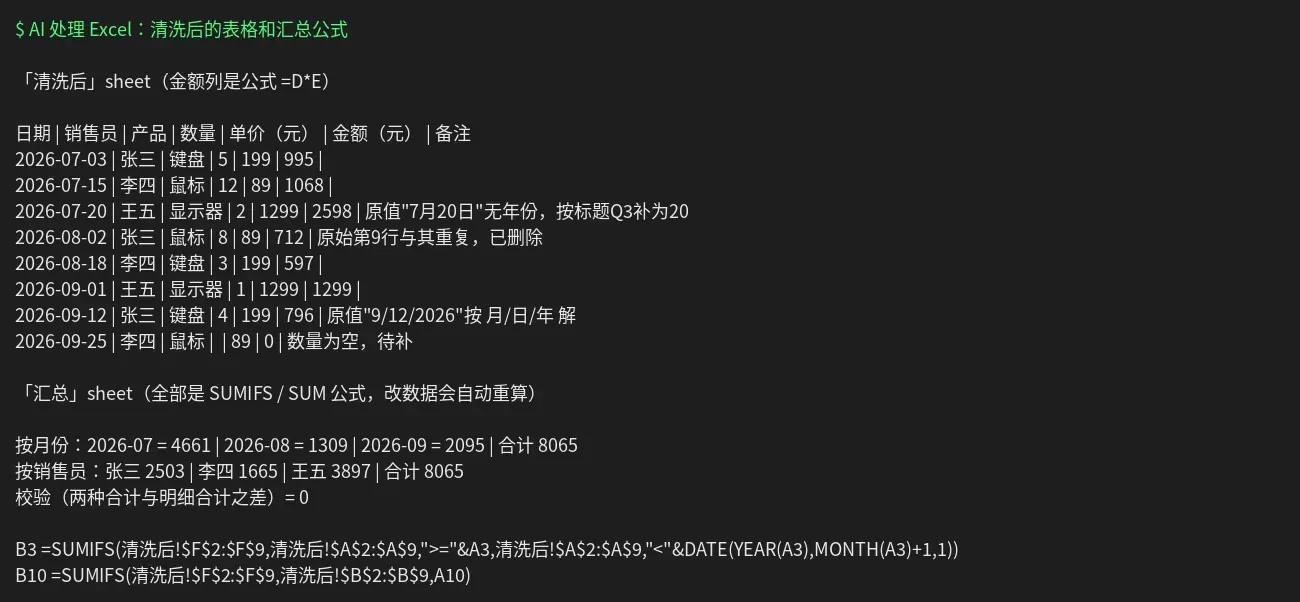
AI 处理 Excel:清洗后的表格与 SUMIFS 汇总公式
The finished result: in the "清洗后" (cleaned) sheet, dates are normalized to yyyy-mm-dd and the amount column uses formulas. The "汇总" (summary) sheet summarizes by month and by salesperson, all with SUMIFS formulas, and both totals differ from the detail total by 0.
Set Up the Environment First: Connect to AICodeWith in Two Steps
You only need to set this up once, and it works for every scenario afterward:
- Install Claude Code: Follow the official Claude Code installation docs. Then type
claude --versionin your terminal. If you see a version number, you're set. - Create a key and edit the global config: After logging in, go to "密钥管理" (Key Management) in the console and click "创建密钥" (Create Key). Then open the global config file
~/.claude/settings.jsonand fill in the Base URL and Key underenv:
{
  "env": {
    "ANTHROPIC_BASE_URL": "https://api.aicodewith.ai",
    "ANTHROPIC_AUTH_TOKEN": "sk-你的Key"
  }
}
Do not add/v1to the end of the Base URL. After saving, reopen your terminal and runclaude. If you can chat normally, the connection works. For what each field means and more on error handling, see "How to Connect Claude Code to a Third-Party API".
You also need to install the xlsx Skill once. In your terminal, run claude plugin marketplace add anthropics/skills, then run claude plugin install document-skills@anthropic-agent-skills. This skill pack includes xlsx, as well as docx, pptx, and pdf.
Step 1: Describe How You Want the Table Cleaned in One Prompt
Put your Excel file in a folder and run claude inside that folder. Here is the request we used in the test:
用 xlsx skill 清洗 销售.xlsx:保留原始数据 sheet 不动,新建「清洗后」sheet:修正错位的表头、删掉空行和标题行、去掉重复行、统一日期为 yyyy-mm-dd、数量和单价转成数字(去掉"元""¥"和空格,空值标注出来)、新增「金额」列用公式=数量*单价。再新增「汇总」sheet,用 SUMIFS 公式按月份和按销售员汇总金额。全部用真实 Excel 公式,不要写死结果,最后用 recalc.py 校验零公式错误。保存为 销售-清洗后.xlsx,并在回复里列出你用到的公式。
Swap in your own file name, target formats, and summary dimensions, and it's ready to use. Two phrases are worth keeping:
- "Leave the original data sheet untouched": This keeps the original as a backup, so you can compare against it if anything goes wrong.
- "Use real Excel formulas everywhere, don't hardcode results": This way, the summaries update on their own when you change the data later.
Step 2: What It Cleaned Up
The original sheet in our test had these problems buried in it: a title row, blank rows, headers with extra spaces, six date formats, numbers with "元", "¥", and spaces, one duplicate row, and one blank quantity. Here is what Claude Code did:
- It removed the title row and blank rows, moved the header to row 1, and stripped extra spaces from headers and salesperson names (otherwise "李四" and "李四 " would be counted as two different people).
- It converted all dates to real date values, displayed as
yyyy-mm-dd. For dates without a year, like "7月20日", it filled in 2026 based on the Q3 in the sheet title and noted this in the remarks column. - It stripped "元", "¥", and spaces from quantities and unit prices and converted them to numbers.
- Of the two rows that became identical once the dates were normalized, it kept only one and noted the reason in the remarks.
- The original data sheet was left completely untouched.
The formulas it used:
金额:=D2*E2
按月份:=SUMIFS(清洗后!$F$2:$F$9,清洗后!$A$2:$A$9,">="&A3,清洗后!$A$2:$A$9,"<"&DATE(YEAR(A3),MONTH(A3)+1,1))
按销售员:=SUMIFS(清洗后!$F$2:$F$9,清洗后!$B$2:$B$9,A10)
It also added a check row at the bottom of the summary sheet: the monthly total and the per-person total are each subtracted from the detail total. A result of 0 means nothing was missed or double-counted.
Step 3: Keep Talking and Let It Make Changes
Just keep making requests in the same session:
- "Add another summary by product."
- "Add a column chart by month."
- "Highlight rows that need manual confirmation in yellow."
- "Split the September data into its own sheet."
An error we hit in testing: ValueError: 20
The first time the cleaning script ran, the date parsing Claude Code wrote didn't recognize formats like "7月20日" and raised this error:
ValueError: 20
After seeing the error, it fixed the date parsing rules on its own, added support for the "X月X日" format, and the rerun passed. No manual intervention was needed.
A Checklist to Run Through After Cleaning
AI makes Excel work fast, but before you hand the file off, spend a minute checking these items:
- Were blank values counted as 0?: In our test, one row had a blank quantity, and the amount formula returned 0 instead of leaving it blank. That row was highlighted yellow and given the comment "数量为空,待补" (quantity blank, to be filled in), but the summary still counted it as 0. Once you fill in the quantity, it recalculates automatically. If you want blanks to stay blank, say in your request: "leave the amount blank when the quantity is blank."
- Inferred dates: For dates with no year, or ambiguous month/day order such as "9/12/2026", check the remarks column to see how it interpreted them, and correct them by hand if they're wrong.
- Removed duplicate rows: Check the remarks to see which row was deleted, and confirm it really was duplicate data.
- Whether the summary check row is 0: If it isn't 0, some data was not included in the summary.
Common Errors and Self-Checks
| Symptom | What to do |
|---|---|
| ValueError and other parsing errors | Claude Code usually fixes these itself. If it doesn't, tell it which format wasn't recognized |
| Summary contains hardcoded numbers | State in your request: "use real Excel formulas everywhere, don't hardcode results" |
| document-skills not found | Run claude plugin marketplace add anthropics/skills again, then install |
| 401 or request failed | Check that the Key is complete and the Base URL is https://api.aicodewith.ai (without /v1), then reopen your terminal after changing it |
FAQ
Will using AI to clean a spreadsheet damage the original data?
Just include "leave the original data sheet untouched" in your request. In our test, it kept the original data fully intact and put the cleaned result in a new sheet.
How long does it take?
In our test, it took 61.5 seconds from sending the request to getting the cleaned file. Larger tables and more rules take longer.
Do the generated formulas work in WPS?
SUMIFS, SUM, and DATE are all common functions that WPS Spreadsheets supports. The test file was generated and verified in Excel format.
Can I use this without knowing formulas?
Yes. Describe in plain language what you want to summarize by, and it will write the formulas itself and list them in its reply.
Can it merge multiple Excel files together?
Yes. Write something like "merge these files into one sheet, then clean it" in your request, and spell out the rules the same way you would for a single file.
Related Reading
- If your report needs to become a PPT, see "Make a PPT with Claude".
- For organizing invoice records, see "AI for Invoices: Generate an Invoice Ledger in One Prompt".
- To turn your team's standard spreadsheet conventions into permanent rules, see "How to Write CLAUDE.md for Claude Code".
Sign Up for AICodeWith → View All Models →
References
- Anthropic's official Skills repository: github.com/anthropics/skills
- Claude Code installation: code.claude.com/docs/en/setup
Similar Scenarios
For more ways to use AI for data analysis and the full workflow, see the AI data analysis scenario page.